

Repetitive work, done on its own.
And explained.
Assign, notify, chase the stalled task, create the task every Monday: the rule does it on its own and tells you why it did. You build it as a sentence, simulate it on the last 30 days before turning it on, and undo it if you don't like it.
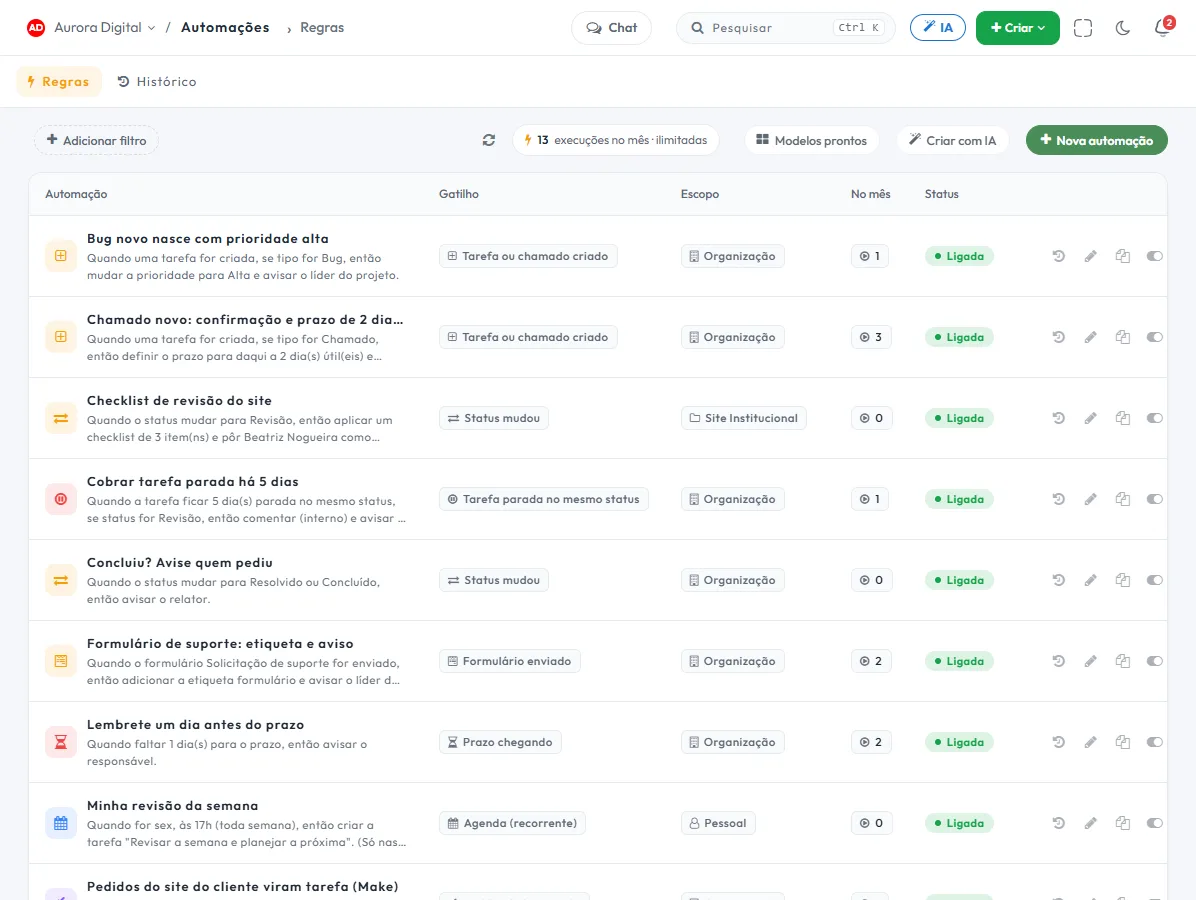
Three blocks, one sentence, and the reason behind every run
No flowchart with fifty little boxes. The rule is a sentence anyone on the team understands, and each time it acts, what happened is written down.
Six screens, one menu: Automations
Real Tasskee screens, with a demo agency's rules actually running.
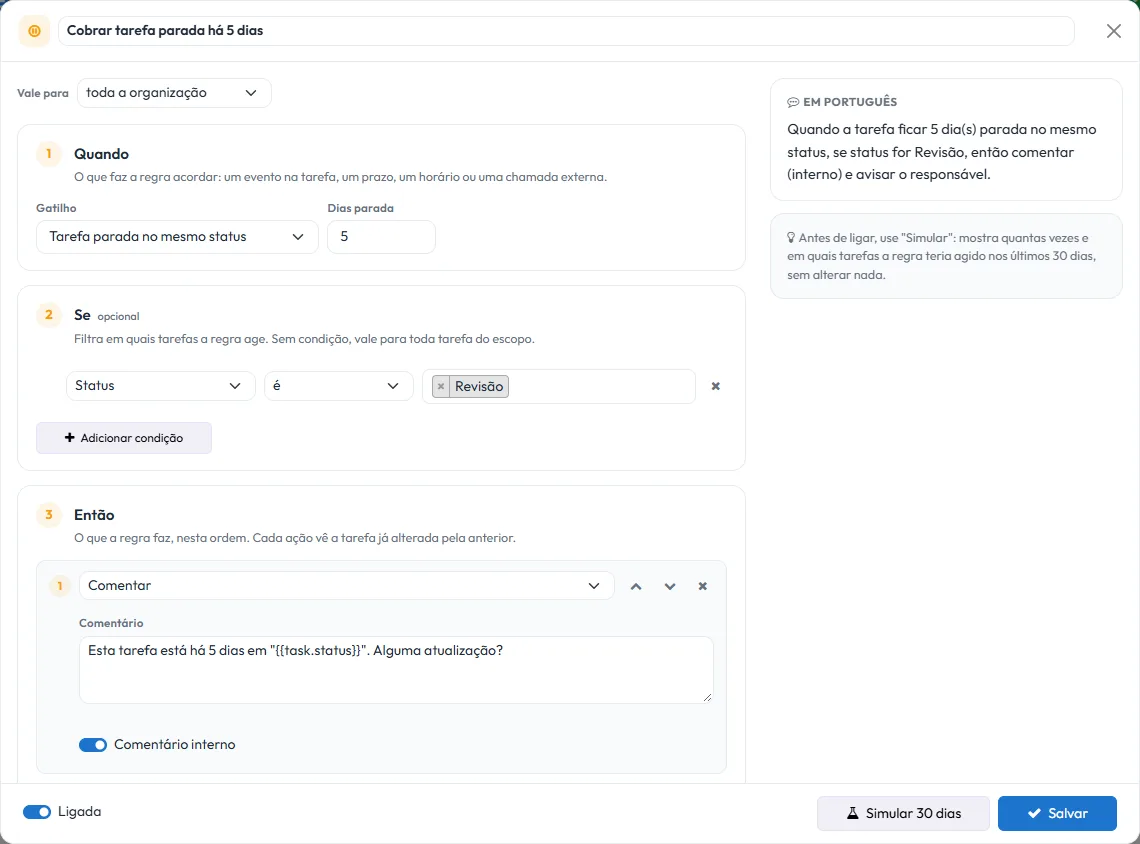
A plain sentence, not a diagram.
Choose the trigger, filter with conditions and stack the actions. While you build it, Tasskee writes alongside what the rule will do — and that sentence is what shows in the list for the rest of the team.
- WhenAn event on the task or ticket, a form submitted, a deadline approaching or passed, a stalled task, a schedule or an inbound webhook.
- IfProject, workstream, type, status, priority, assignee, reporter, tag, title, description, custom field, and due date — with AND or OR.
- ThenActions run in list order, and each one already sees the task as changed by the previous one.
- Applies to whomThe whole organization, one project, or just your personal tasks.
16 triggers and 19 actions, for tasks, tickets and personal tasks
The same engine serves the project team, support and each person's private list. The task type is just one more condition.
When
Created · Status changed · Field changed · Assignee set · Comment · Attachment · Tag · Approval approved or rejected · Dependency released
Deadline approaching · Deadline passed · Stuck in the same status for N days
Form submitted · Recurring schedule · Inbound webhook (Zapier, Make, your own system)
Then
Change status or priority · Assign an assignee · Add a watcher · Move to a sprint or workstream · Set a deadline in business days · Add or remove a tag · Apply a checklist
Create a task or subtask with variables · Comment (internal or not) · Notify people · Send email · Call a webhook
Set the priority · Suggest the assignee · Summarize in a comment · Generate subtasks
Know what the rule would do before it does it.
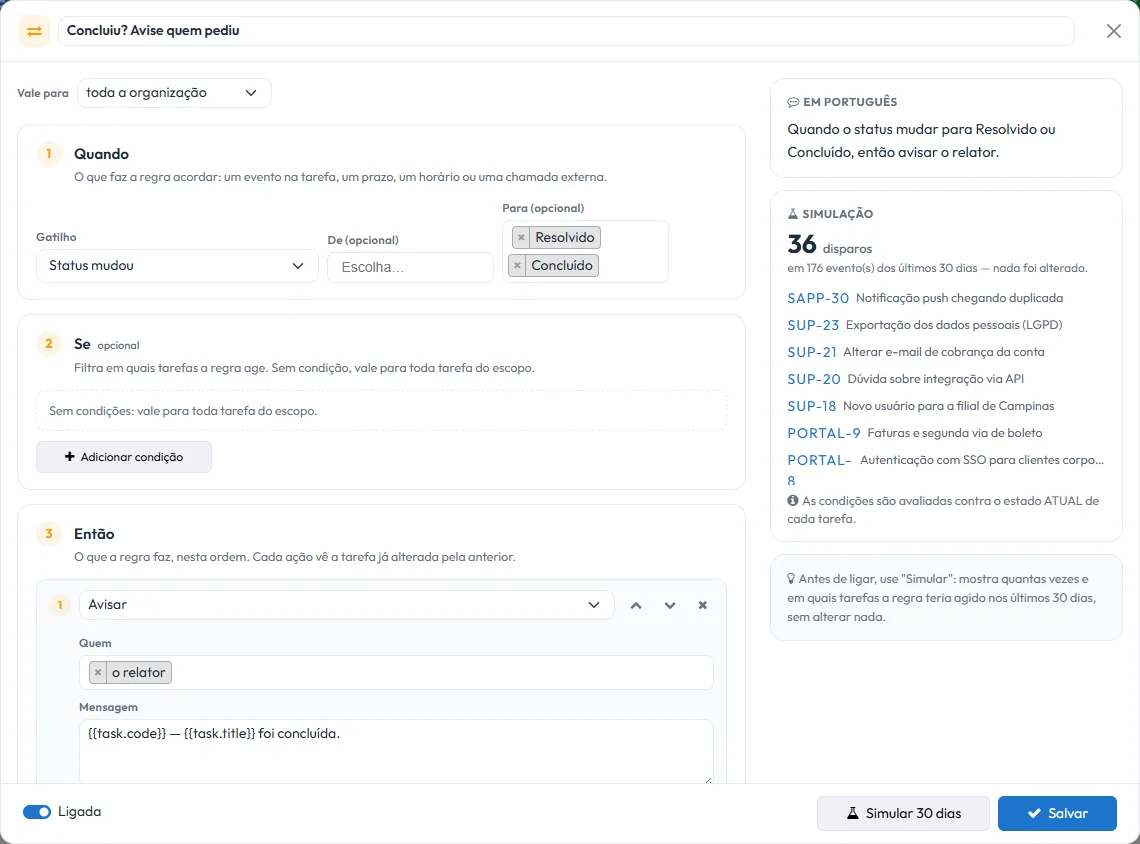
The fear with every automation is turning it on and messing up five hundred tasks. Here, one button runs the rule against the last 30 real days and shows the result, without changing anything.
- How many times"36 triggers across 176 events in the last 30 days": you see the volume before it turns into a notification in someone's inbox.
- On which tasksThe list with the code and title of each task the rule would have reached.
- Time doesn't go backwardTurning on "notify when due" on an old account doesn't fire five hundred notifications at once: it applies from the day the rule is created onward.
A rule that acts silently is a rule nobody trusts.
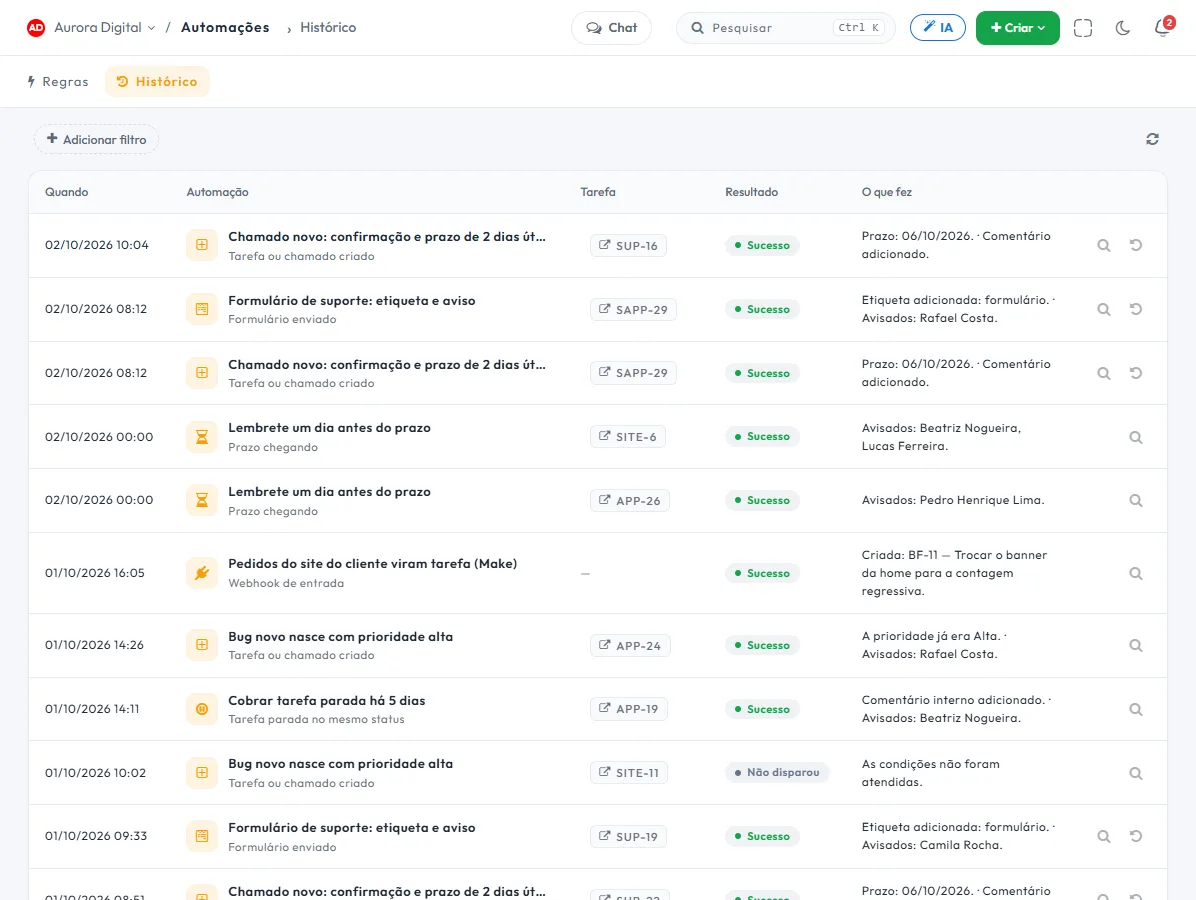
Every run is saved in the history with the task, the result and what was done. One click on "Why?" opens the event, each condition that passed or failed and the message from each action.
- Also when it didn't trigger"Conditions were not met": the question "why didn't the rule run?" has an answer, with a date.
- Undo the runThe fields the rule changed go back to their previous value — only the ones nobody touched afterward. What can't be undone, like a notice already sent, the screen tells you.
- Signature on the taskWhatever the automation changes shows up in the audit log and in comments as "Automation: rule name". No one mistakes it for a person.
Why the rule did this
The event, the task, the condition that passed and the result of each action, with date and duration. It's what you show in the meeting when someone asks "who touched this?".

And on the task itself
The comment the rule wrote comes signed by the automation, and marked as internal when the client shouldn't see it.

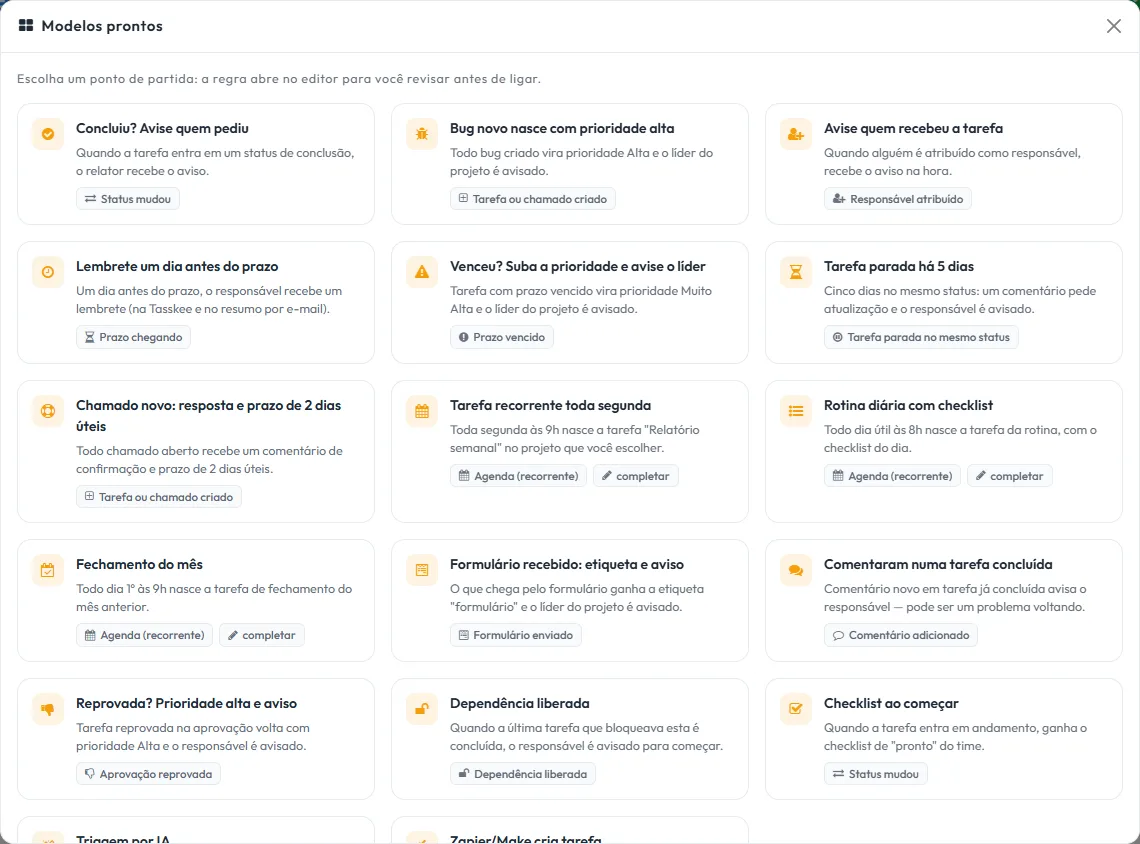
Pick a template, or ask in your own words
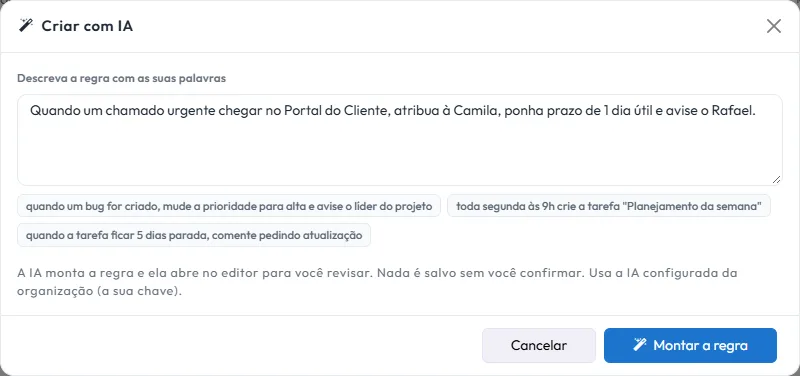
In both cases the rule opens in the editor for you to review. Nothing is turned on without your confirmation.
17 ready-made templates
Notify the requester on completion, high-priority bug, deadline reminder, escalate the overdue one, chase the stalled one, ticket with reply and deadline, recurring task, routine with checklist, month-end close, AI triage and more.
Create with AI
"When an urgent ticket arrives in the Client Portal, assign it to Camila, set a 1-business-day deadline and notify Rafael." The AI returns the finished rule, with the sentence, for you to check and save.
Recurring task, integration, and email, with no screen of its own
Recurring tasks
"Every Monday at 9 a.m., create the Weekly report — week {{week}} in the Client Portal, for Camila, with a checklist." The schedule works by day, by weekday or by day of the month, and the title accepts variables.
Incoming webhook
Each rule gets its own URL: Zapier, Make or your site create the task with a POST.
Send email
To your team or to outside recipients, through your organization's Gmail account — the client gets it from you, not from us.
Personal rules
Each person automates their own list: the Friday review, the deadline reminder.
AI actions
Sets the priority, suggests who should handle it, summarizes and breaks it into subtasks — with your own AI key.
Through MCP and the API
Automations are also MCP capabilities: your team's AI agent lists, creates, simulates, turns on, turns off and reads the history of rules, with the permissions of whoever asked. The REST API does the same for your system.
Powerful enough to work on its own. Restrained enough for you to sleep.
What comes off the coordinator's plate
No automation
- Remembering to tell the client the task is done
- Asking the group who picked up the new ticket
- Finding out on Friday about a task that has been stalled since Monday
- Recreating the same task by hand every week
- Nobody knows why the priority changed
- When it's completed, the reporter is notified
- The ticket arrives with a deadline, a response time and an assignee
- Stalled for five days, the rule chases it
- Every Monday, the task creates itself
- Every change says which rule made it, and why
And all in the same place as tasks, tickets and customer service — with no Zapier in the middle for everyday work.
Questions from people who will automate operations
Do I need to know how to code to create an automation?
What triggers an automation?
How do I know why a rule acted (or didn't)?
What if a rule does something silly?
Can one rule trigger another and cause a loop?
Who can create automations?
Does the automation send emails and notify the team?
How many runs does my plan include?
Does it work with Zapier, Make and my own system?
Turn on your first rule today.
Create your account, pick a template, simulate it on your last 30 days and turn it on. By tomorrow morning the history already shows what it did.