

The right document inside the task.
Specs, minutes and contracts stop living in a folder nobody can find. The document stays linked to the tasks it explains, both ways.
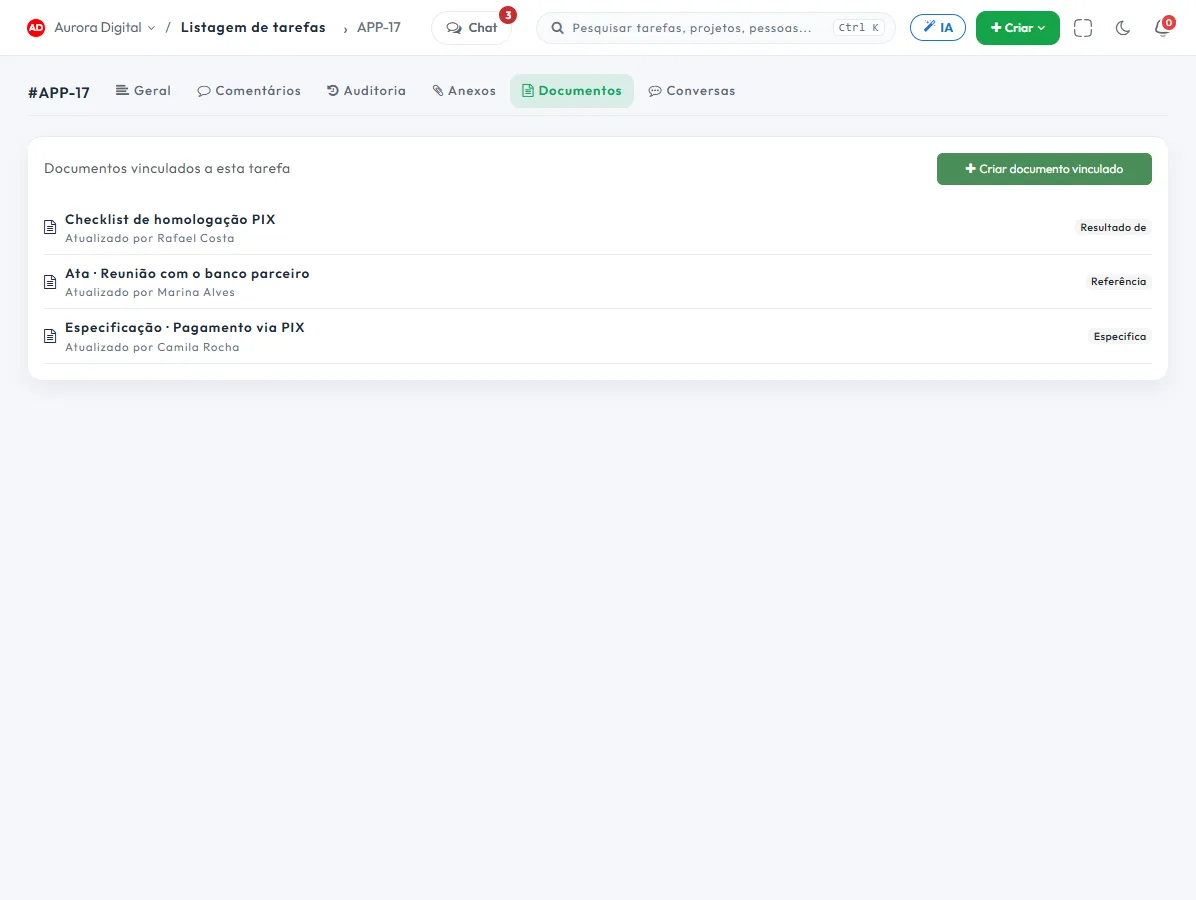
Knowledge that stays, even when someone leaves
When the "how to do it" lives only in one person's head, the operation stops along with their vacation.
A link in both directions
Whoever opens the task finds the document; whoever opens the document sees the tasks linked to it.
AI writes with you
Summary of a long document, passage improvement and meeting minutes from your notes, with your AI key.
From text to plan
A briefing or scope becomes a task list in the project, with the AI proposing the breakdown and you approving it.
History and public link
Earlier versions are kept, and whatever has to be read by outsiders goes by public link.
Turn scope into tasks without retyping everything
The slowest path between a document and a project is copy and paste. The assistant reads the text, proposes the tasks and you adjust before creating them.
- Import a document or meeting minutes, turning them into tasks with an assignee and due date
- Subtask and checklist suggestions for an existing task
- Summary of the comments in a long discussion
- Related-document suggestions when you open a task
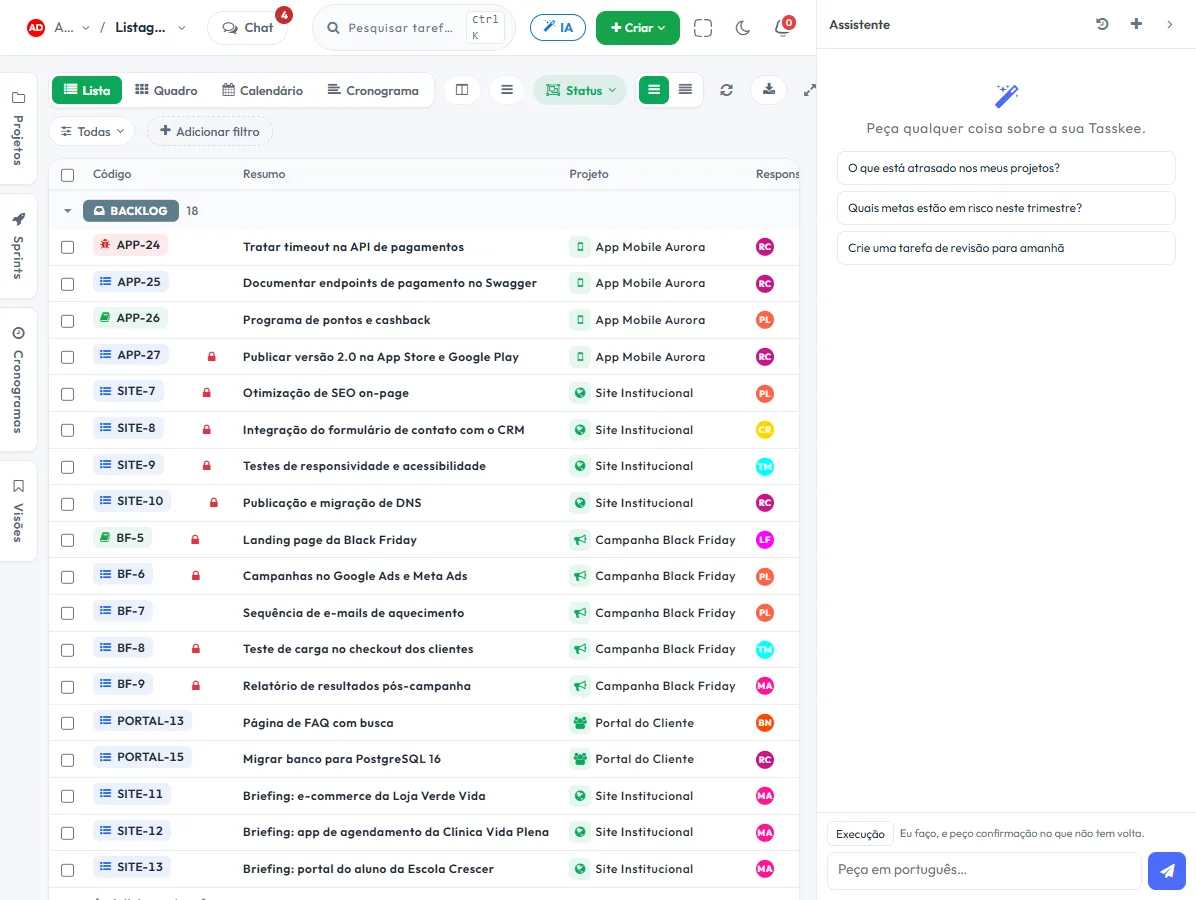
This lives alongside the rest of the operation
Task, schedule, ticket, goal, and conversation are the same database. What changes in one place shows up in the other, with nothing to export.
How to use documents inside Tasskee in practice
A document only helps when someone finds it at the moment they need it. That's why the golden rule is simple: every document is born linked to the tasks it explains. Whoever opens the task finds the document, and whoever opens the document sees the tasks.
Step by step
- Create the document and give it a name you can find by searching. "Scope – Downtown store renovation" is worth more than "New document 2".
- Write, or ask the AI for help. With your AI key, it summarizes a long text, improves a passage or builds the minutes from your meeting notes. The final text is yours.
- Link it to tasks. The link works both ways. Do it right away, because it's the step most often forgotten and the one that best prevents the question "where's the briefing?".
- Turn the text into a plan. The AI reads a briefing, a scope or minutes, proposes the breakdown into tasks with assignees and due dates, and you adjust before creating. Nobody has to copy and paste line by line.
- Share with people outside. From the Start plan, a document can have a public link, which you turn on and off whenever you want.
- Review the history when someone disagrees. Previous versions are kept, so "who changed this?" has an answer.
Which documents are worth keeping
| Type | Link to | Tip |
|---|---|---|
| Briefing and scope | The project's tasks | Also write down what's out of scope |
| Meeting minutes | The tasks that came out of it | Import the minutes and let the AI propose the tasks |
| Procedure (how-to) | The recurring task that uses it | Review it when the process changes |
| Policy and internal rule | Whoever needs to follow it | Public link if the text is meant for outsiders |
Examples by type of company
Architecture firm in Belo Horizonte
The client's briefing, with floor area, style and budget, becomes a document. The AI proposes the project phases and the architect adjusts them. When the client asks "what did we agree?", the document link answers. See also the use for architecture firms.
Network infrastructure company in Palhoça
The procedure for installing a network point is a document linked to the recurring task. The new technician opens the task and finds the step-by-step. When the practice changes, you edit a single text.
Consultancy in Goiânia
After each client meeting, the consultant pastes in the notes, the AI builds the minutes and the consultant turns the agreements into tasks with due dates. The minutes stay linked to the tasks, and the history shows when the agreement changed.
From document to plan: what the AI does and doesn't do
- Imports a document or minutes, proposing tasks with assignees and due dates.
- Suggests subtasks and a checklist for an existing task.
- Summarizes the comments of a long discussion.
- Suggests related documents when you open a task.
What it doesn't do is decide for you. AI usage is paid directly to your provider, with your key, without Tasskee credits. For the reasoning behind it, read how to turn a document into a project plan with AI.
Common mistakes
- A loose document with no link. It turns into a folder: nobody finds anything. Always link.
- Writing and never reviewing. An outdated procedure is worse than none. Set a review date.
- One giant document. Prefer one per topic, linked to what it explains.
- Blindly trusting the AI's text. It summarizes and proposes. You're the one who signs off on the document.
- Forgetting the plan limit. Free has 10 documents, Start 50, and Pro and Max have no limit.
Document or spec?
For what describes the work, like scope, minutes and procedures, a document does the job. For people who code with an AI agent and need status, progress and acceptance criteria, there's the spec, which keeps a number, a state and progress. The two coexist in the same project.
If your documentation is already scattered across folders and emails, start with the most active project: three documents linked to the right tasks already change the routine. Also see the AI assistant to see what it reads, and the project briefing template for somewhere to start.
Questions about documents
Do I need another documents tool?
Can I share a document with someone who doesn't use Tasskee?
Does the AI write the document on its own?
Take knowledge out of email and put it next to the work
Create a free account and link your first document to the tasks it explains.