

A real schedule, no spreadsheet and no surprises.
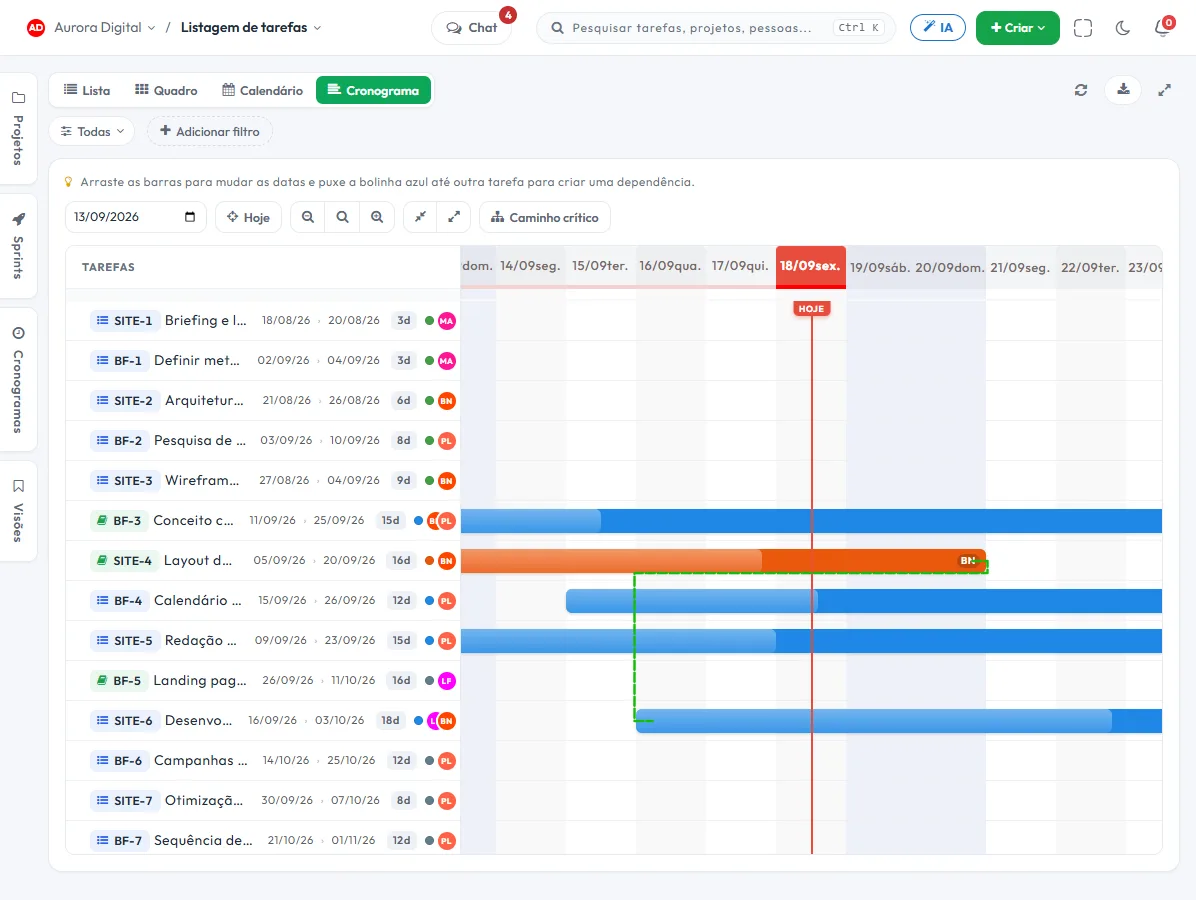
Each task becomes a bar on the timeline. You drag to change dates, link one task to another and instantly see what pushes the delivery back.
The plan that survives the first surprise
A schedule spreadsheet breaks at the first delay, because nobody recalculates everything by hand. Here the tool does the math.
Drag and reschedule
Change the date by dragging the bar. Tasks linked to it adjust, and you see the effect before you promise anything.
Dependencies
A task only starts when the previous one ends. It is what separates a plan from a wish list.
Milestones and critical path
Mark the dates that can't slip and see the sequence that determines the final delivery.
Progress on the bar itself
Progress shows on the timeline, so the meeting discusses what to do, not what already happened.
The schedule rules the long term; the sprint, the week
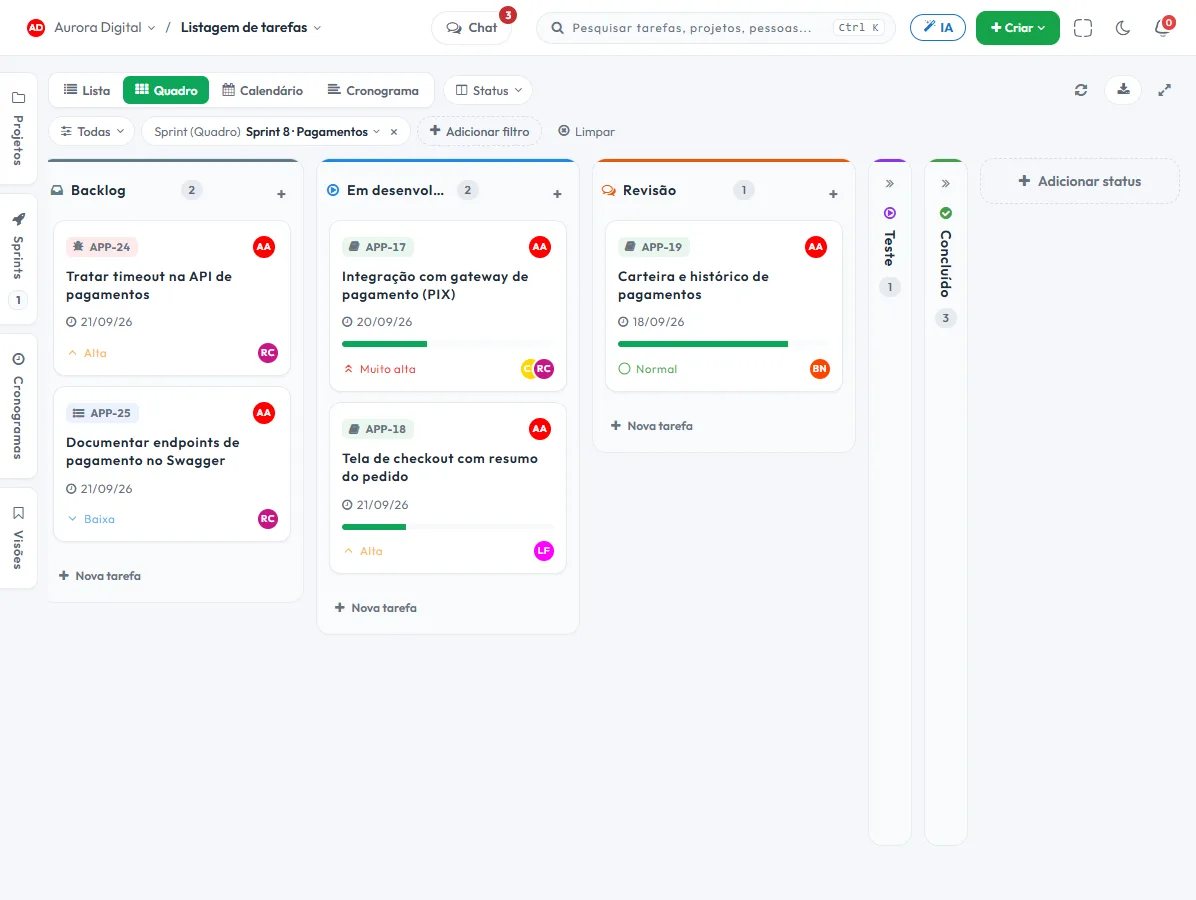
They are the same tasks. The schedule shows the whole journey, and the short cycle shows what the team delivers in this two-week stretch — without two tools disagreeing with each other.
- Pull into the sprint what the schedule says is the priority now
- Daily burndown to know, mid-cycle, whether there will be enough time
- Velocity from previous sprints to estimate with real numbers
- Completing a task on the board updates the schedule bar instantly
This lives alongside the rest of the operation
Task, schedule, ticket, goal, and conversation are the same database. What changes in one place shows up in the other, with nothing to export.
How to build a Gantt schedule in practice and keep it alive
A schedule turns into junk when only one person updates it once a month. To work, it has to be born from real tasks, have few dependencies that truly matter and be consulted every week. This playbook shows how to do that in Tasskee, without starting from scratch.
Step by step
- List the tasks in the project. They appear on the timeline as soon as they get a date. If the scope is in a document or in meeting minutes, you can import it and turn it into tasks with the help of the AI, and then just adjust.
- Group by workstream. Workstreams are the grouping within the project: "Detailed design", "Procurement", "Installation". The schedule stays readable because each workstream has its own lane.
- Give each task a start and an end. Drag the bar to move it and adjust the duration. Make an honest estimate; the plan has to fit reality, not wishes.
- Link only the dependencies that matter. A task that can only start when the previous one finishes gets the link. Linking everything to everything creates a tangle nobody reads.
- Mark the milestones. Client approval, material delivery, inspection: these are the dates that can't slip.
- Look at the critical path. Tasskee highlights the sequence that defines the final date. That's where you focus attention and team reinforcement.
- Update through the work, not the schedule. Progress shows up on the bar itself, so the meeting discusses what to do, not what already happened.
Examples by type of company
Architecture firm
A residential project has well-chained phases: survey, preliminary study, client approval, detailed design, coordination. The schedule sets the approvals as milestones and links each phase to the previous one. If the client takes a week to approve the study, the firm instantly sees the effect on the final delivery and can already agree on a new date with them. See also the page for architecture firms.
Technical service provider
A network company that installs the cabling of a commercial building uses the Gantt to fit the crews together: running the infrastructure comes before installing the points, which comes before certification. When the construction site releases the floor late, the manager drags the first task and the linked ones adjust. Worth remembering that Tasskee organizes the schedule, but it isn't a construction budgeting and measurement system; for the construction format, see the construction schedule template.
Marketing agency
A launch campaign with a fixed date is planned backward: the milestone is launch day, and the deliverables, approval and media come before it. The critical path shows which stage can't slip. The client follows the stages through the client portal, in a read-only Gantt.
Best practices
- Avoid giant tasks: they hide delays. Break them into pieces that fit in a few days.
- Review the schedule every week, in five minutes, looking only at the critical path and the milestones.
- When a deadline changes, change it in the schedule and communicate it. An outdated schedule is worse than none.
- Combine it with the short cycle: the schedule rules the long term and the sprint rules the week.
Common mistakes
| Mistake | Consequence |
|---|---|
| Dependencies on everything | A small delay shifts the whole project on paper and nobody believes the plan. |
| No milestones | There's no reference date to negotiate with the client. |
| Dates without an owner | The bar exists, but nobody answers for it. |
| A schedule made once | It becomes an archived document, not a decision tool. |
Schedule or board?
Both are views of the same tasks. Use the Kanban board for the day to day and the Gantt for deadlines and dependencies. The post Kanban or Gantt helps you decide which to look at in each situation.
A weekly review routine
Always pick the same day and the same time. Open the schedule, filter by the project and answer four questions: is any milestone at risk? Is any task on the critical path behind? Who has no date? What has changed since last week? If the answer calls for a change, adjust the bar and let whoever depends on it know. Five minutes like this are worth more than a monthly replanning meeting, because the deviation is small when you see it early.
To understand the concepts (bar, dependency, milestone, critical path) in detail, read the Gantt chart guide. If you'd rather start from a ready-made structure, use the project schedule template. The schedule is part of the Pro plan, unlocked during the 15-day trial.
Questions about schedule and Gantt
Do I have to build the schedule from scratch?
What is the critical path, in practice?
Can I show the schedule to a client without giving access to the system?
Does the schedule disappear if the project becomes Kanban?
Your next project deserves a schedule that holds up
Build the timeline in minutes and find out today about the delay that would only show up at delivery.