

Team chat, without leaving the task.
A floating window opens over any screen. You talk to a colleague or the project group, mention whoever needs to reply, send the file and go back to work without switching apps.
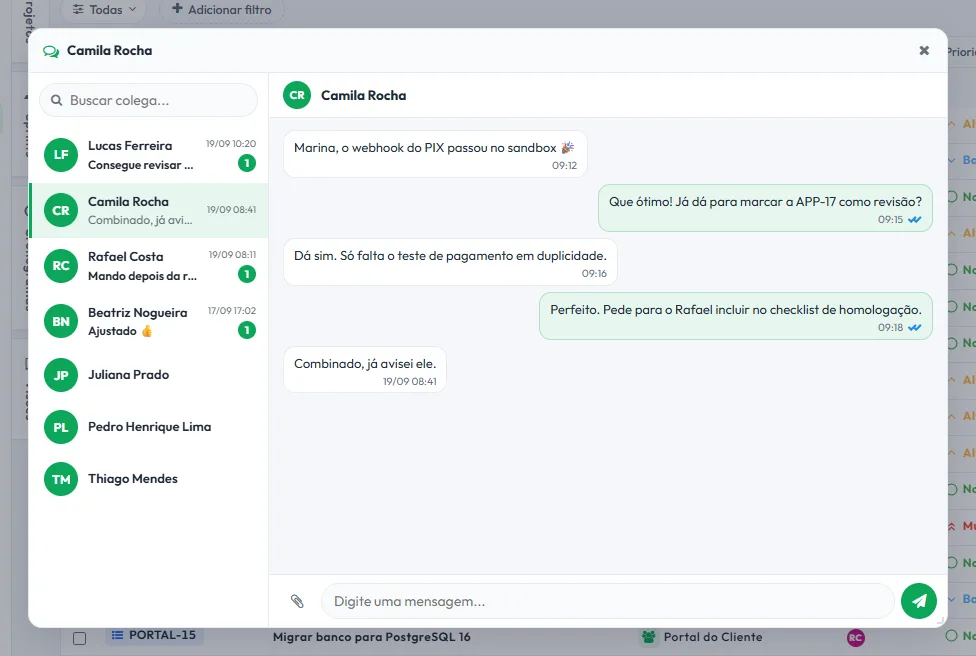
What was agreed stays close to the work
Every team has lost an important decision in the middle of a group with 400 messages. Chatting inside the system shortens the distance between what was agreed and the task.
A window that follows you
Drag, resize and switch screens: the conversation stays open, in the same place and size.
One-on-one or in a group
Everyone in the organization appears in the list. For a project team, create a group, including people from another organization you belong to.
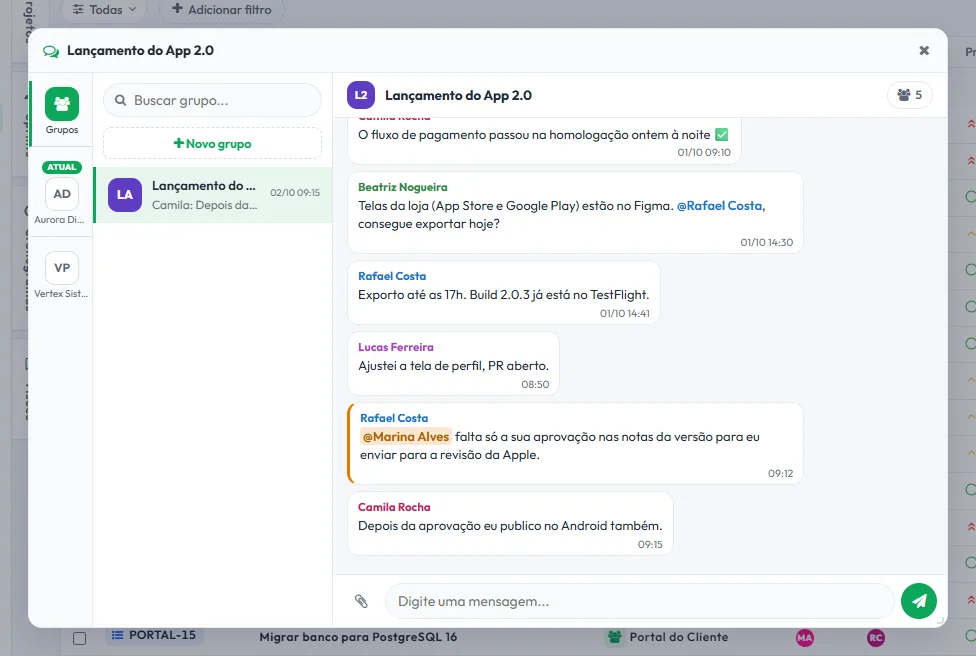
@mention that notifies
In the group, type @ and pick the person: the name is highlighted and they get a notification on the bell.
Who is waiting on you
The email digest includes the "Waiting for your reply" block, with the colleagues and groups waiting to hear back from you.
Talking with the team is one thing; with the customer, another
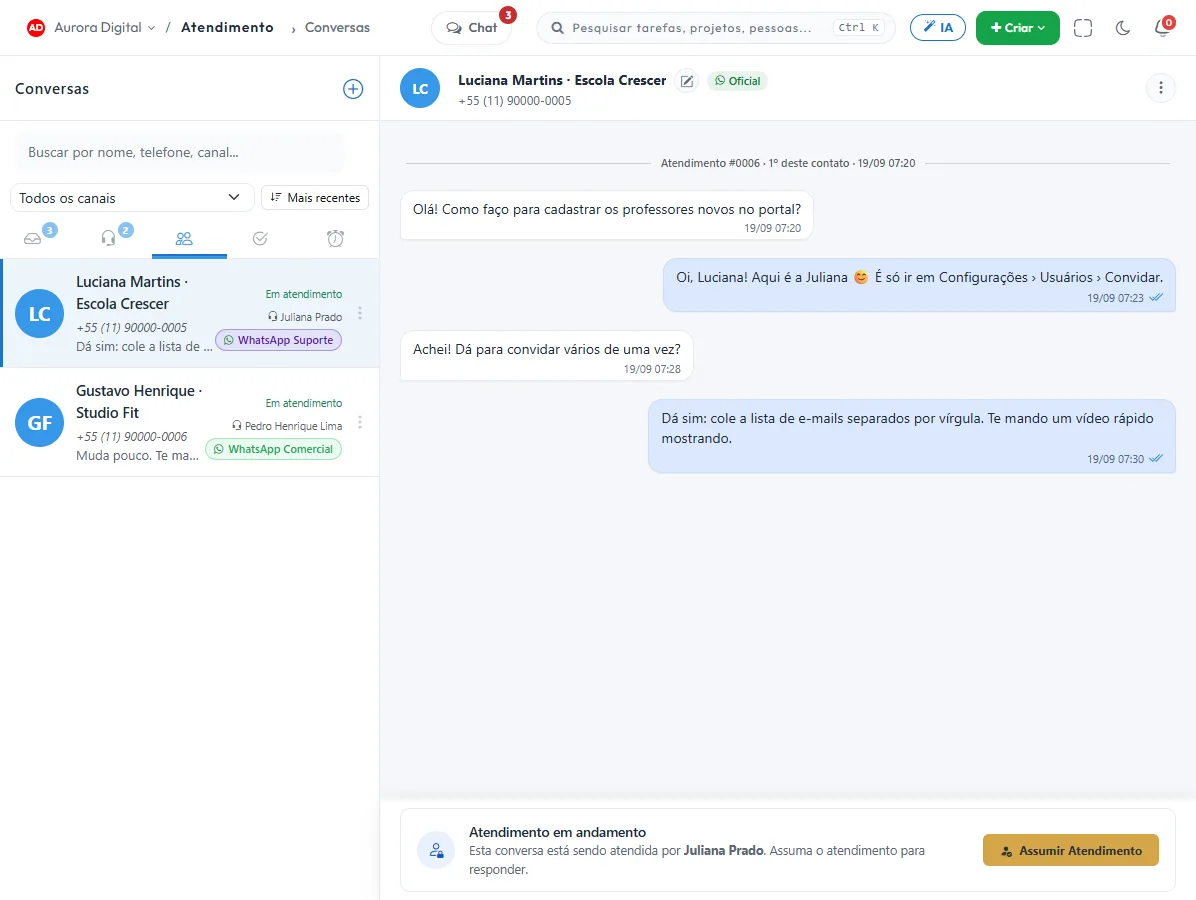
Team chat is for the team. When the one talking is the customer, the place is Customer Service: a shared inbox per channel, with a queue, SLA and satisfaction survey.
- Team chat doesn't depend on a channel, WhatsApp or a customer service team
- The customer conversation comes in through WhatsApp or email, into a shared team inbox
- From both, whatever becomes work becomes a task or ticket in the right project
- Each has its own permission: not everyone needs to see customer service
The project group, with whoever needs to be in it
Whoever creates the group invites people from any organization they belong to, and the invitees don't need to be in the same organization as each other. Ideal for a client's team, an implementation or a campaign.
- Admins invite, remove, rename and delete; members chat and leave
- Left the team of the organization they joined through, loses access to the group immediately
- Whoever joins sees the conversation only from then on
- Files and images in the group, counted toward the sender's quota
This lives alongside the rest of the operation
Task, schedule, ticket, goal, and conversation are the same database. What changes in one place shows up in the other, with nothing to export.
How to use internal chat in practice without it becoming just another message group
Well-used internal chat reduces interruptions. Poorly used, it becomes the same 400-message group, just inside another system. The difference lies in agreeing, from day one, on what conversations are for, what groups are for and what tasks are for.
Step by step to get the team talking
- Open the window and pick a colleague. Everyone in the organization appears in the list, and the conversation starts with one click, with no invitation and nothing to install.
- Position the window where it won't get in the way. It's floating: drag it, resize it and switch screens. It stays open in the same place and size, so you can check the task list while you chat.
- Send the file right away. Screenshots and documents travel in the conversation, with read receipts. If your colleague read it and didn't reply, you know it arrived.
- For a project team, create a group. Under "Groups", give it a name and invite people, including from another organization you're in, like the client's team that also uses Tasskee. Whoever creates it becomes an administrator and can share administration with others.
- Mention whoever needs to reply. In the group, type @ and pick the person. Their name is highlighted in the message and they get a notification on the bell, without having to read the whole group.
- If the conversation generated work, open a task. This is the step most people skip. A "can you look at this by Thursday?" in chat only exists for those who were in the conversation. The same sentence in a task, with an assignee and a due date, exists for the whole project.
- If you serve more than one company, switch organizations right in the window. Each organization has its own conversations, so you never mix one client with another.
The rule of thumb: chat to agree, tasks to track
One-on-one conversations and groups are for what's quick and one-off. A discussion that decides scope, deadline or approval is more productive in the task comments, where the context is together and everyone on the project can see it. Use chat to:
- ask for a clarification that fits in two lines;
- let someone know you changed something that affects them;
- send a file to look at now;
- agree on who talks to the client;
- align a project team in the group, mentioning whoever needs to act.
Who's waiting for your reply
A stalled conversation is chat's classic problem: someone asked on Tuesday and the answer never came. In Tasskee, the email digest includes a "Waiting for your reply" block, with the names of those waiting: colleagues whose message is the last one in your one-on-one conversation, and groups where you were mentioned and haven't written since. The block comes with the digest you already receive, without sending an extra email.
Anything with a deadline, an owner or that needs approval moves up to a task or a document. Someone who joins the project next week has no way to read anyone else's conversation.
Three examples of use by type of company
Accounting firm in Joinville
The tax analyst is closing the month's calculations and needs an answer from a colleague in the HR department about a termination. Instead of interrupting in person, she opens the window over the task she's working on, asks and carries on. An answer that becomes an obligation, like "send the payment slip by the 20th", gets a task with a due date.
Electronic security company in Greater Florianópolis
The field technician sends a screenshot of the rack once installed, and the coordinator, at the office, replies without leaving the calendar screen. The conversation settles the day. What's pending, like "replace the DVR power supply at client X", becomes a task in the client's project. See how this fits into the routine in project management for electronic security.
Marketing agency in Curitiba
The designer asks the copywriter whether the headline changed before exporting the piece. The answer is short and stays in chat. The client's approval, on the other hand, stays in the task, so it doesn't depend on anyone's memory.
Common mistakes
| Mistake | Why it hurts | What to do |
|---|---|---|
| Deciding scope in chat | The decision doesn't show up for people who join later | Record it in the document or the task |
| Expecting an immediate reply | Brings back the interruptions chat was supposed to avoid | Agree that anything urgent has a due date in the task |
| Talking to the client here | Internal chat is for the team; it has no queue or SLA | Use Customer Service for clients |
| Opening a conversation for every topic | The history turns into a mess | A topic that grows becomes a task with comments |
| A group for everything and everyone | Nobody reads it, and the important question gets lost | One group per project or workstream, and an @mention for whoever needs to act |
When the conversation involves the client
Internal chat has no channel, no WhatsApp and no customer service team: it only serves colleagues within the organization. If the person who needs to take part is the client, the way to go is the client portal, where they comment and approve on the project without taking up a seat, or Customer Service, for those who write via WhatsApp or email. Keeping that boundary prevents a candid internal conversation, about deadlines or margins, from ending up in front of people it shouldn't.
How to tell if it's working
After two weeks, look at three signs. Has the team's WhatsApp group gone quieter? Have tasks started to be born with the phrase agreed in the conversation, instead of "as we discussed"? And has the client stopped receiving questions the team had already answered internally? If so, chat is in the right role. If the team keeps dropping decisions into loose conversations, the problem isn't the tool: you need to agree on the rule that whatever has an owner and a deadline becomes a task.
Internal chat comes with the Pro plan, which you can try for 15 days with no card. To see how it fits into the routine of people who work with tasks and documents, also check out the Kanban board and the plans.
Questions about team chat
Is team chat the same as Customer Service?
Is the conversation saved?
Can I chat in a group?
Who can manage the group?
What if someone leaves the company?
Take the decision out of the group chat
Talk with the team where the work happens and turn what was agreed into a task on the spot.