

Organize work by dragging, the way your team thinks.
The columns are your process's, not a textbook's. The task carries assignee, due date, checklist, attachments and comments, and changes stage with a drag.
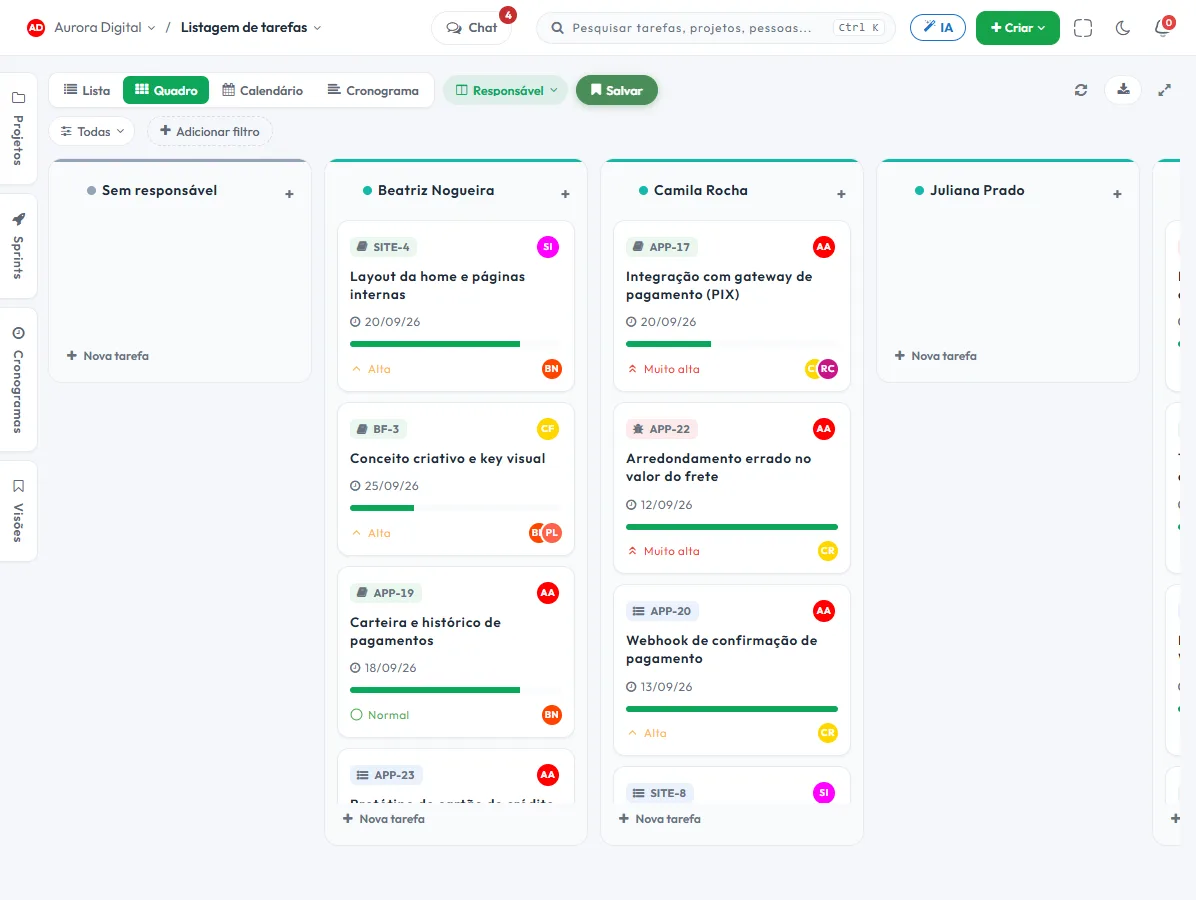
The board that adapts to your process
No need to squeeze your operation into three fixed columns. You create the stages, decide what shows on the card and look at the same work from whatever angle you need.
Columns your way
Create, rename and reorder statuses. Each project can have the workflow the team really uses.
Swimlanes by who matters
Split the board by assignee, priority, sprint, type or schedule, and see instantly who is overloaded.
The card tells the story
Due date, tags, checklist, attachments, subtasks and comments stay on the task, with who changed what logged.
Your view, saved
Save the filter and grouping in a view and return to it with one click, without rebuilding everything every Monday.
When the board isn't enough, switch views
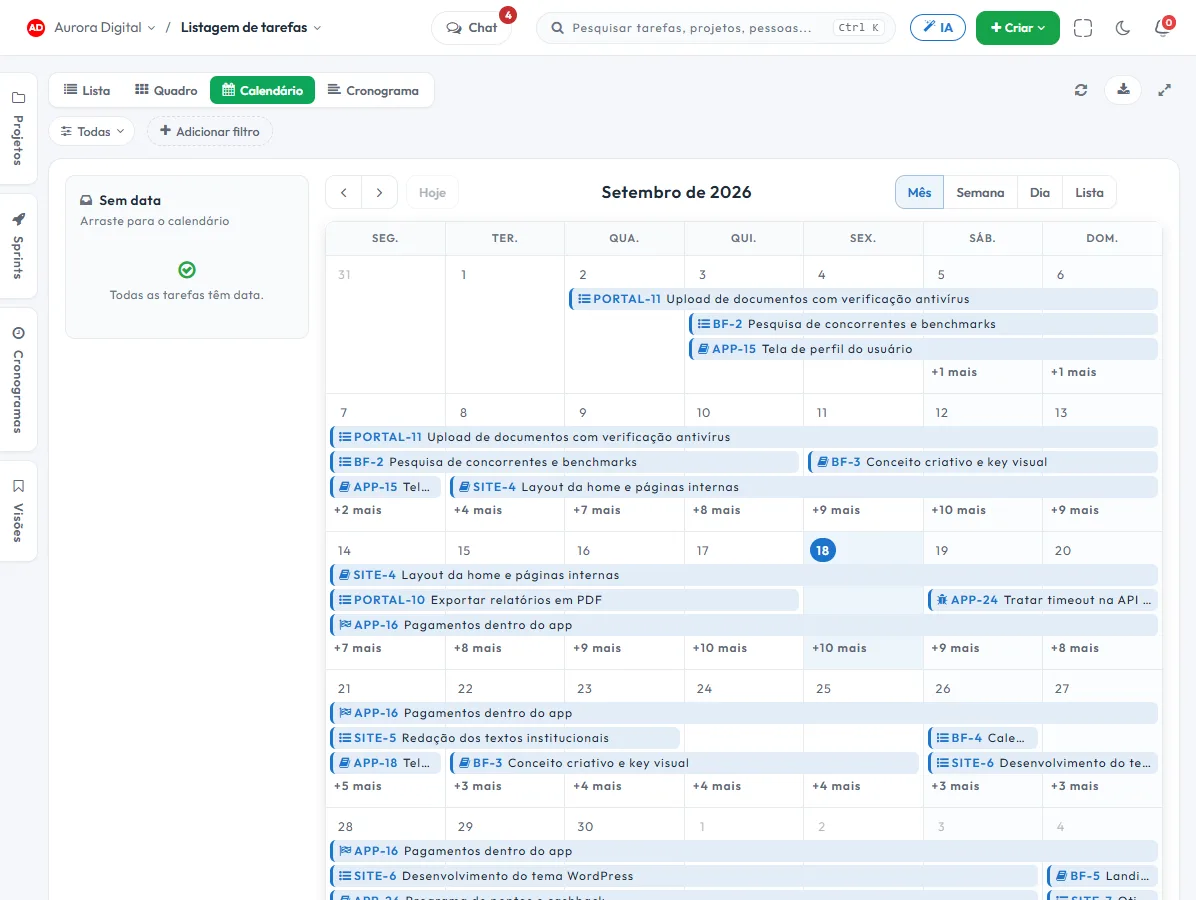
The task is one; what changes is how you look at it. From the board to the calendar, the list, the schedule or the burndown, without duplicating anything or exporting a spreadsheet.
- Calendar by month, week or day, dragging the task to another date
- List with filtering, sorting and quick editing
- Schedule with dependencies for the same set of tasks
- Burndown of the same tasks, to know whether the pace meets the deadline
Everyone chooses what the card shows
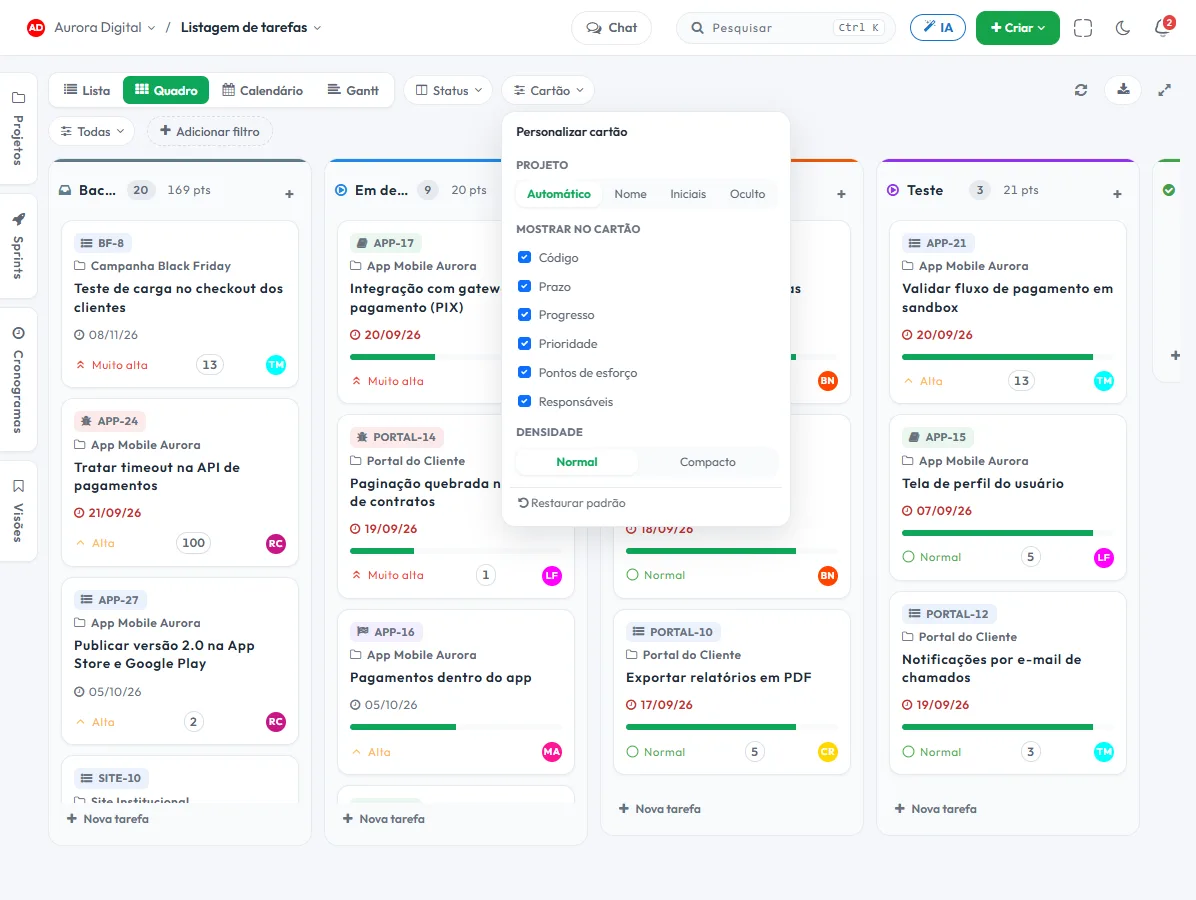
Whoever follows several projects wants the project name on the card; whoever lives in just one wants space. In the Card menu you turn each piece of information on and off and choose the density, without changing anyone else's board.
- Project on the card: automatic, name, initials or hidden
- Code, due date, progress, priority, points and assignees, one by one
- Normal or compact density, to fit more tasks on screen
- The preference is yours, per organization and per screen
This lives alongside the rest of the operation
Task, schedule, ticket, goal, and conversation are the same database. What changes in one place shows up in the other, with nothing to export.
How to use the Kanban board in practice, from the first project to the weekly routine
Having a good-looking board doesn't make work move. What does is a small set of agreements: which columns exist, who moves cards and what it means for a task to be in each one. Below is a simple playbook for setting that up in Tasskee, with examples from companies that use the board every day.
Step by step to get the board up and running
- Create the project and design the columns. The statuses are yours: create, rename and reorder them. Start with the process the team already follows, even if it's just "To do, Doing, Review, Done". Refining later is easy; starting with twelve columns isn't.
- Add tasks with the bare minimum. A clear title, an assignee and a due date. Checklists, attachments and subtasks come in when the task calls for them, not out of obligation.
- Define what the card shows. In the Card menu you turn the code, due date, progress, priority, points and assignees on and off, and choose normal or compact density. The preference is yours, so nobody has to fight over space on the card.
- Group the board by what matters. On the Pro plan, swimlanes can be assignee, priority, sprint, type or schedule. On Monday, grouping by assignee shows in seconds who has a full queue.
- Save the view. Filter and grouping become a named view. In Wednesday's meeting you open "Team overdue" in one click, instead of rebuilding the filter.
- Make the board the center of the short meeting. Go through it from the rightmost column to the left: first what's nearly done, then what's blocked. That's the order that unblocks deliveries.
Examples by type of company
Marketing agency in Florianópolis
An agency with twelve clients creates one project per client, with the columns "Briefing, Creative, Internal approval, Client approval, Published". The bottleneck almost always shows up in "Client approval": by grouping the board by assignee, the account manager sees which cards are stuck with them and follows up with a date. For clients to follow along without getting into the team's day to day, see the client portal.
Technical service provider
A camera and network installation company uses one column for each stage of the service: "Visit scheduled, Quote sent, In progress, Waiting on customer, Completed". The card holds the installation checklist and the photos attached by the technician. The coordinator groups by assignee and redistributes before the week blows up. The same reasoning applies to those who do building maintenance.
Accounting firm
The firm creates columns by obligation: "Documents received, Under review, Being calculated, Review, Delivered". Each client is a tag and each month's period is a task with a checklist. When the deadline tightens, the saved view "Due this week" keeps anything from slipping through without depending on anyone's memory.
Best practices
- Give each column an exit criterion. "Review" only ends when someone has checked the whole checklist.
- Limit work in progress per person. Three open tasks at a time move faster than eight.
- Close the task on the board, not by email. The history records who changed what, and that's gold in a discussion with the client.
- Use bulk actions (Pro plan) to move or reassign several tasks at once at the end of a cycle.
Common mistakes
| Mistake | Why it hurts | What to do |
|---|---|---|
| Too many columns | The board turns into a wide spreadsheet and nobody finds anything. | Merge similar stages; use tags for details. |
| Task without an assignee | Everyone thinks it belongs to someone else. | Every task that leaves "To do" has an owner. |
| Card that never leaves the column | Hides a real blocker. | Comment on the reason and review it in the short meeting. |
| A board only for the manager | The team stops updating it. | Whoever does the work moves the card; it's part of the agreement. |
When the board isn't enough
The board shows the stage, but not the calendar. If the question is "when", open the calendar view; if there are dependencies between tasks, the schedule shows the sequence. It's the same task in different views, with nothing duplicated. For teams that work in cycles, the board can also be grouped by sprint.
Want to understand the idea behind the method before building yours? Read the Kanban guide, with the principles and the work-in-progress limit, and start from a ready-made structure in the backlog and sprint template. The board and the list are on every plan, including Free.
Questions about the Kanban board
Is Kanban on the free plan?
Can I create my own columns?
Can I view the board by person instead of by status?
Is the board suitable for non-technical people?
Start dragging tasks today
Create an account, open a project and the board is ready to use. No installation and no training.