

Your favorite AI, working in Tasskee.
Add Tasskee as a connector in Claude, ChatGPT or your terminal agent, sign in with your account and authorize. Done: ask in plain language, on your computer or phone, and the AI reads and updates your work with your permissions.
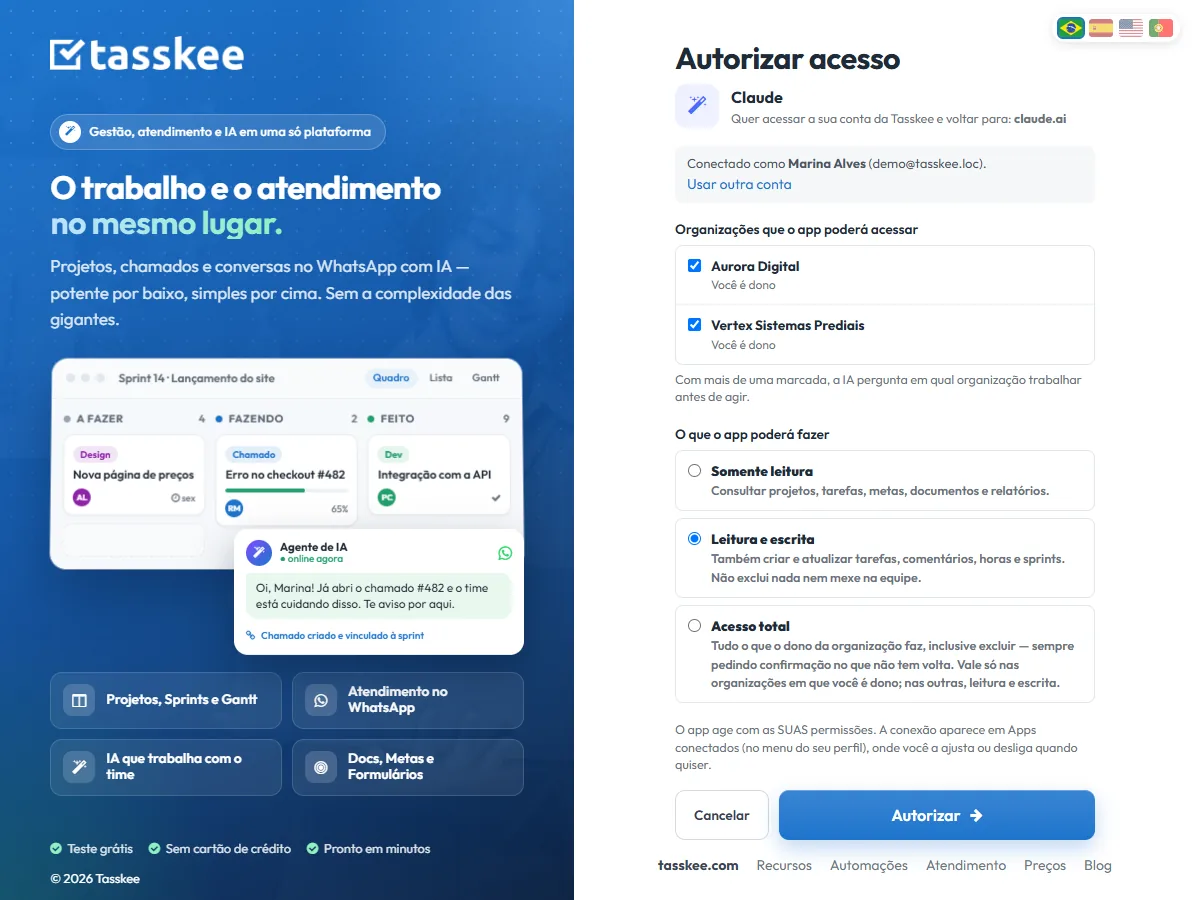
Connecting takes a minute, and needs no token
The AI your team already uses starts seeing your projects, tickets and goals — no copy and paste, and without handing over your account key.
Sign in and authorize
Paste the Tasskee address into the AI app and click Connect. Tasskee opens, you sign in and choose what it can do. No token to copy.
Several organizations in one connection
Check the organizations the app can access. With more than one, the AI asks which one to work on before acting.
Never more than you can
The AI acts as you: it sees what you see and does what your permission allows. Full access only where you are the owner.
Turn it off whenever you want
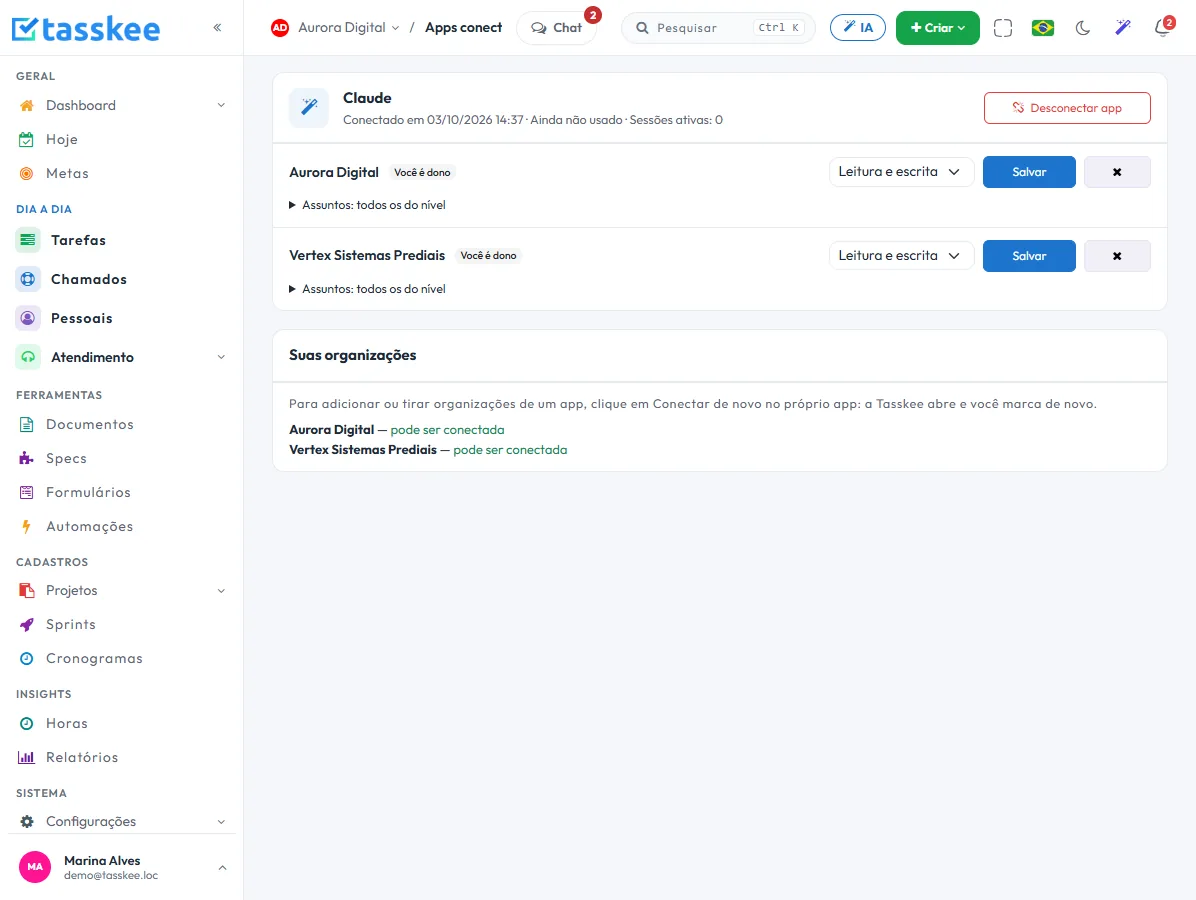
In Connected apps you see each app, adjust its level, remove an organization or disconnect it. The connection ends instantly.
Ask the way you talk. The AI does it in Tasskee.
The connector gives the AI the same tools the built-in assistant uses: tasks, tickets, sprints, goals, documents, specs and even your personal list.
- 1Add the connector In Claude or ChatGPT, under Connectors, paste the Tasskee address. In the terminal, a single command.
- 2Sign in and authorize Check the organizations and the access level. It applies to your app account on all devices.
- 3Ask in plain language "What's due this week?", "Open a ticket for client X", "Add to my personal tasks: call the accountant".
You see and control every app that has access
The connection belongs to your account, not to an organization. On a single screen you check each app, when it was last used and what it can do in each organization.
- Claude in the browser, the desktop app and on mobile
- ChatGPT, through developer mode connectors
- Claude Code, Cursor, VS Code with Copilot and Gemini CLI, with the same login
- Custom agents and automations can still use tokens, with scope and expiry
- Everything the AI does is audited, with the name of whoever authorized it
This lives alongside the rest of the operation
Task, schedule, ticket, goal, and conversation are the same database. What changes in one place shows up in the other, with nothing to export.
How to connect your AI to Tasskee, app by app
In every case the address is the same: https://app.tasskee.com/mcp. The AI app opens Tasskee in a window, you sign in with your account, pick the organizations and choose what it will be allowed to do. No token to copy and paste.
Claude (browser, desktop and mobile)
- On claude.ai or in the desktop app, open Settings → Connectors → Add custom connector.
- Name it Tasskee, paste the address and click Connect.
- Sign in, pick the organizations and authorize. In the chat, enable Tasskee in the tools menu and ask.
The connector belongs to your Claude account: once added on the computer, it shows up in the mobile app with no extra setup. On Claude's Team and Enterprise plans, the account admin adds the connector first; then each person connects their own.
ChatGPT
- In Settings → Apps & Connectors → Advanced settings, turn on developer mode.
- In Apps & Connectors, click Create: name Tasskee, OAuth authentication and the address above.
- Authorize in the Tasskee window. In the chat, pick Tasskee from the + button and ask.
Developer mode availability depends on your ChatGPT plan; in business accounts, an admin enables it.
Claude Code, Cursor, VS Code and Gemini CLI
Coding agents use the same login. In Claude Code, run claude mcp add --transport http tasskee https://app.tasskee.com/mcp and then /mcp to authenticate. In Cursor, add the server under Settings → MCP; in VS Code, in a .vscode/mcp.json file; in Gemini CLI, in settings.json and then /mcp auth tasskee. In all of them, the browser opens Tasskee for you to authorize. The step-by-step with each ready-made file is in the documentation inside the product.
Your own agents and automations
Whatever doesn't sign in, like a bot that runs overnight, keeps using a token created under API / MCP → API tokens, with scope, expiry and the list of subjects it can reach.
What you can ask
| Area | Example requests |
|---|---|
| Tasks and sprints | "What's due this week in the Website project?", "Create three tasks for the contract review, due Friday", "Set up a two-week sprint starting Monday" |
| Tickets | "Which tickets from the client Vertex are open?", "Open a ticket for the printer down on the 3rd floor" |
| Goals | "Which goals are at risk?", "Log the sales goal check-in at 62%" |
| Documents and specs | "Summarize yesterday's meeting minutes", "Implement spec 01 of the Mobile App and update the progress" |
| Your personal list | "Add to my personal tasks: call the accountant", "What's left in my personal tasks?", "Mark the accountant one as done" |
Your personal list is yours alone: through the connector, the AI reaches your personal tasks and nobody else's — not even the organization owner's.
Security: the AI can never do more than you
- It acts as you. The connection uses your permissions in each organization. If you can't see a project, you get no answer about it.
- You pick the level. Read-only, read and write, or full access — the latter only where you're the owner.
- Confirmation for what can't be undone. Deleting asks for confirmation first, and everything goes into the audit log with the name of who authorized it.
- Switch it off instantly. In Connected apps you disconnect the app or remove an organization, and access stops right away.
Good practices
- Start read-only and move to read and write once the team trusts what the AI does.
- Pick only the organizations that make sense. A consultant with several clients gains clarity by connecting one at a time.
- Name the project and the deadline in the request. "Create the task in the Website project, due Friday" works better than "note this down".
- Check the audit log in the first week. It's how you calibrate how much to delegate.
Want the AI inside Tasskee, with no external app? See the AI assistant. For people who code with agents, the specs integration shows MCP in the day-to-day of a software project. Connectors are part of the Pro plan, unlocked for 15 days in the trial, no card required — compare on pricing.
Questions about connectors
Do I need a token to connect?
Does it work on mobile?
Can the AI see what I can't?
What if I belong to several organizations?
How do I turn an app off?
Can the AI reach my personal tasks?
Connect the AI you already use
The MCP is unlocked during the 15-day trial. Create your account, add the connector and ask your first question.