

Every hour worked,
billed and paid.
The team logs hours on the task, and Tasskee does the rest: it totals them the way you need to see them, applies the right rate to each hour, and closes out what to bill the client and what to pay people who work by the hour. No spreadsheet at the end of the month.
From logged hours to money in the bank
At most companies, hours live in one tool, rates in a spreadsheet and billing in email. Here it's a single path, and behind every number is the task that produced it.
Six screens, one menu: Hours
Real Tasskee screens, with data from a demo agency. Each one appears for those who have permission to see it.
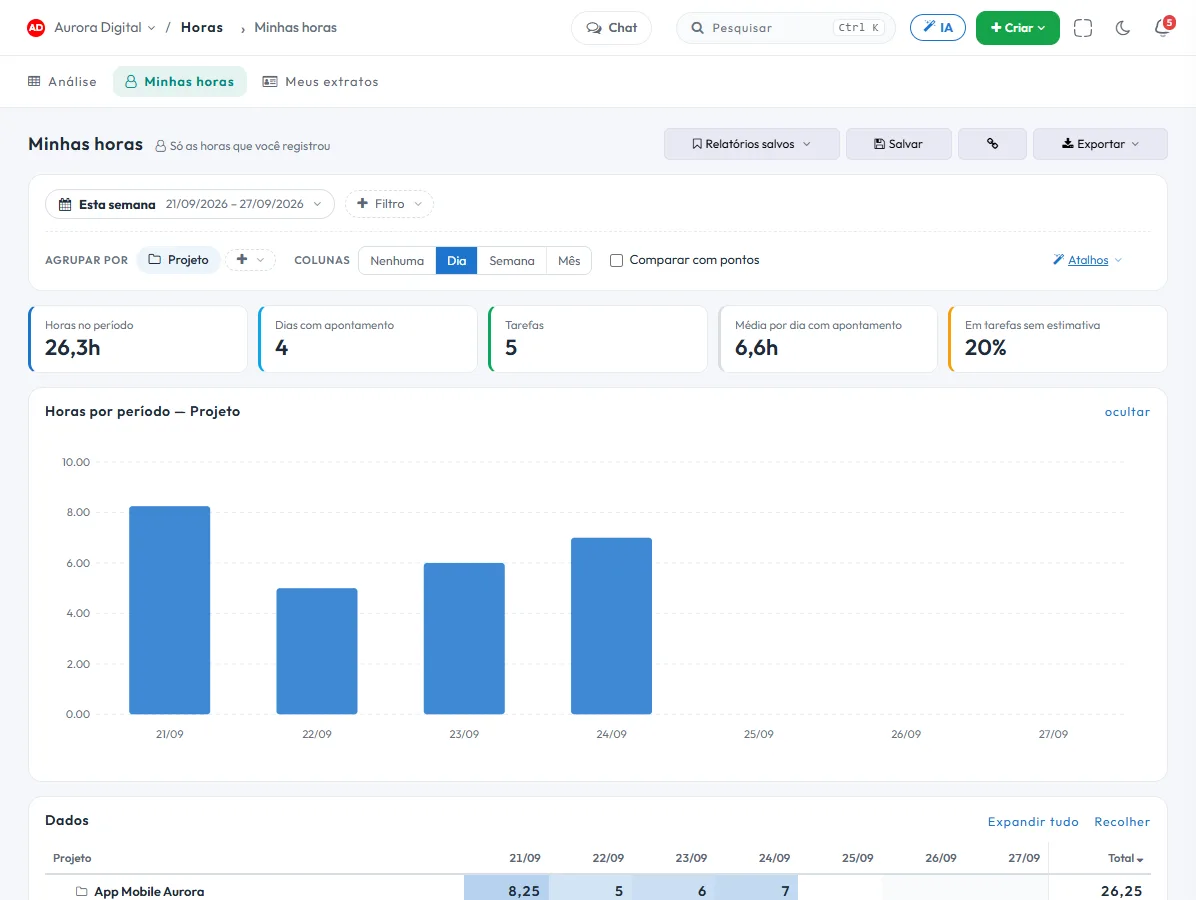
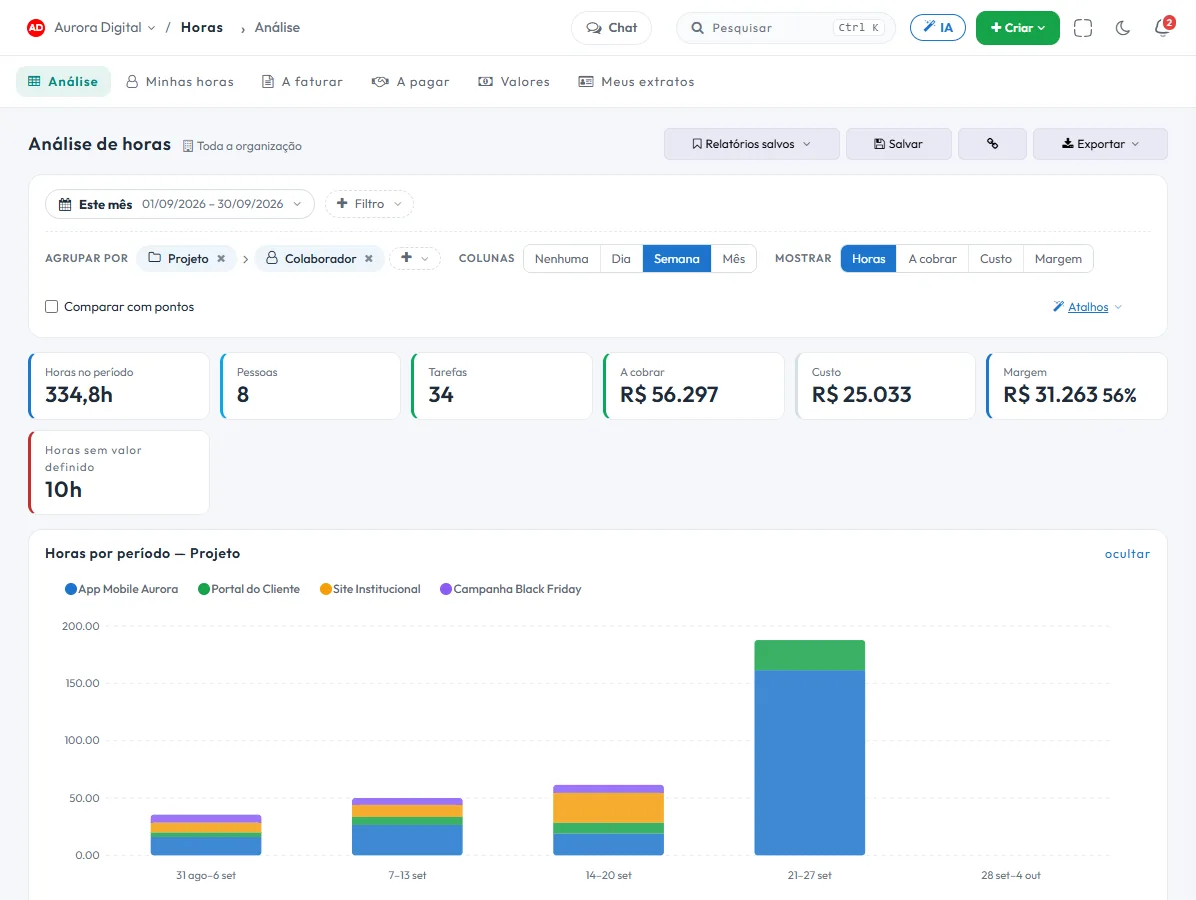
The report you'd build in a spreadsheet, built in three clicks.
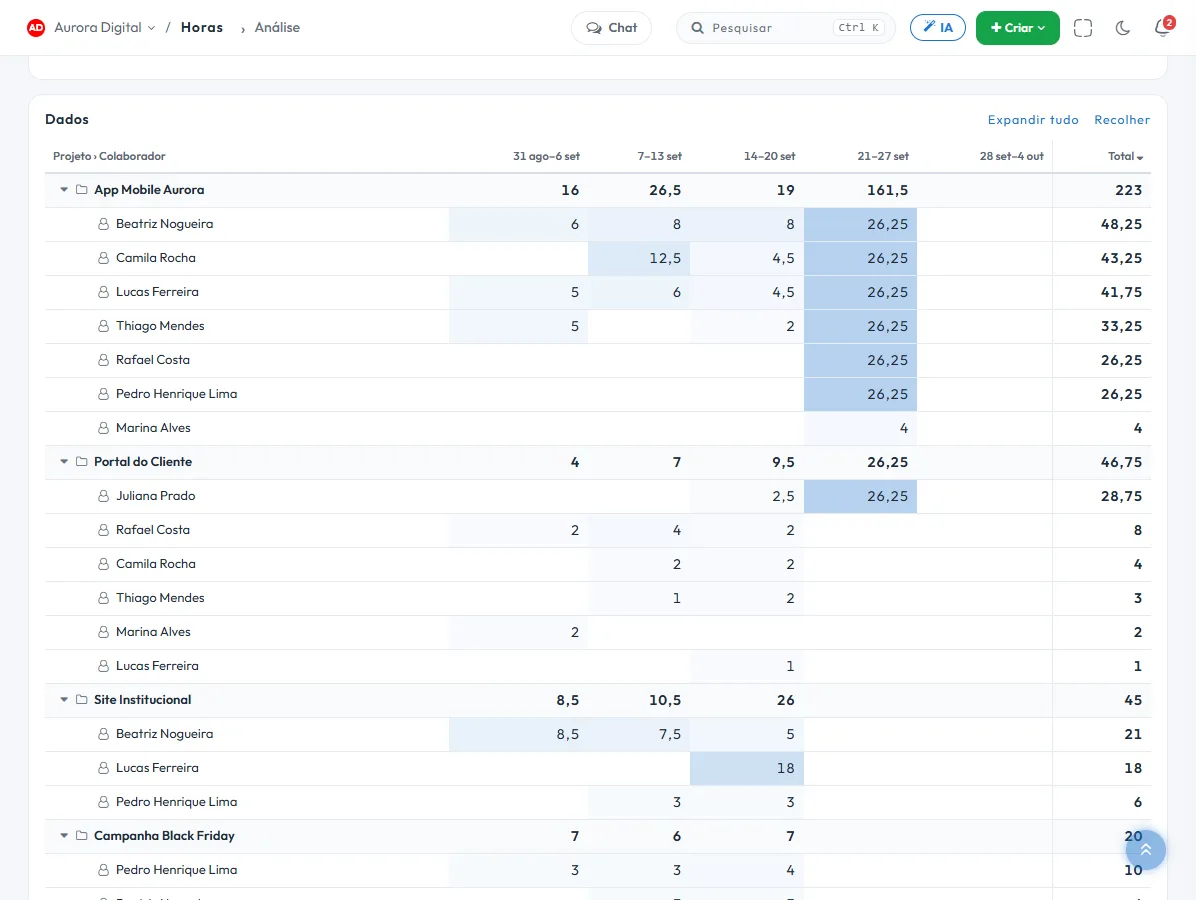
Choose the period, drag up to three groupings in whatever order makes sense and decide whether time becomes a column. The table reorganizes instantly, with a subtotal at each level.
- Group by any angleProject, workstream, team member, type, sprint, task, month, week, or day. Project › Team member for the client; Team member › Project for payroll.
- The period in columnsDay, week or month side by side, with a heat shade on each cell to see where the hours concentrate.
- Hours, billable, cost or marginThe same table in reais, for people with permission. And an alert for hours with no rate defined, which takes you straight to the missing cell.
- Save and shareSave the report just for you or for the organization. The address carries the entire state: copying the link is sending the exact report.
This week's timesheet, ready
One shortcut builds Team member × Day of the current week. Anyone who logged little shows up right away, before Friday turns into Monday.

Margin by project and by type
Switch the metric to Margin and see, month by month, which projects and which types of work make money, and which just make work.

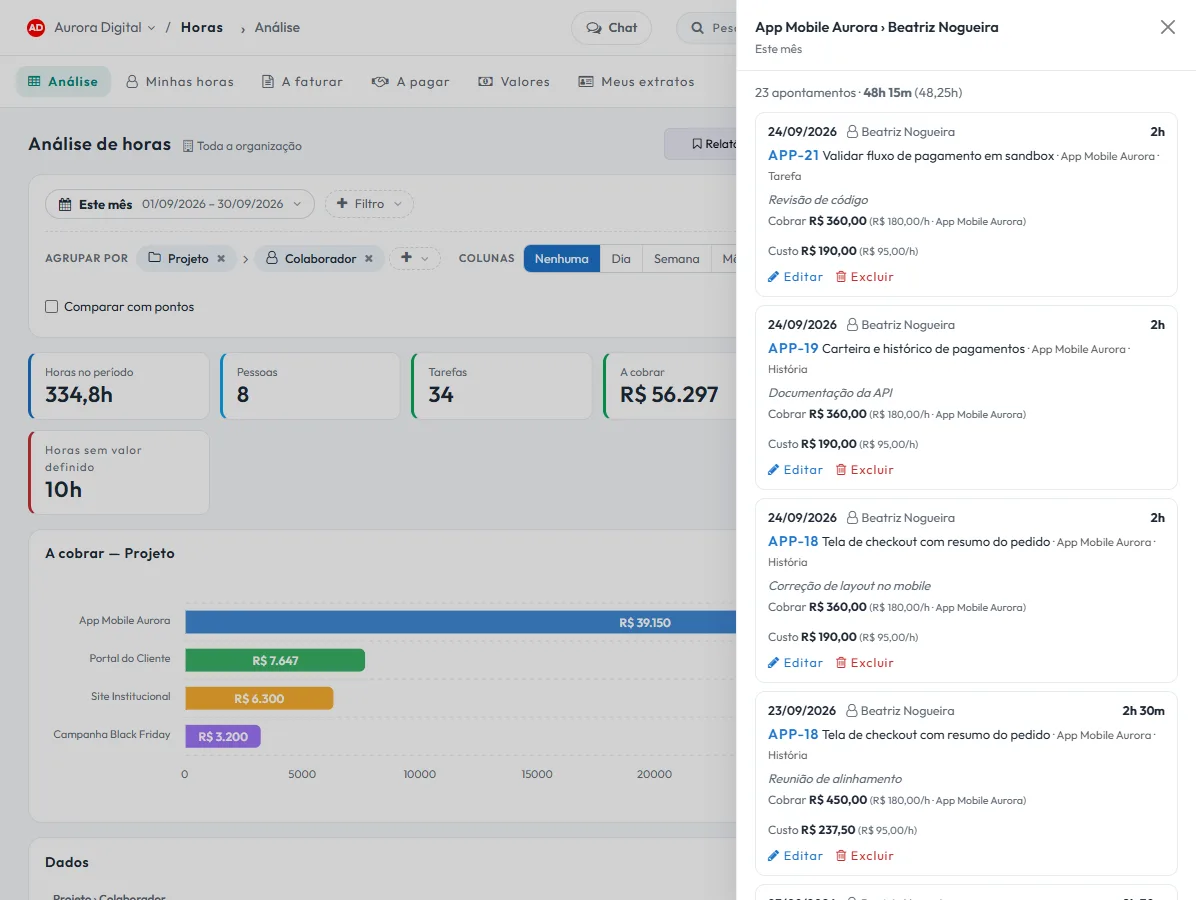
Click any number to see the hours that add up to it.
No totals nobody can explain. Each cell opens, on the side, the time entries that make it up — and that's right where you fix whatever is wrong.
- Date, person, task and noteWhat was done in each entry, with a link to the task.
- The value and where it came from"R$ 180.00/h · Aurora Mobile App": the rule that set the price of each hour stays in plain view.
- Edit and delete, with a lockWhoever has permission fixes it right there. What's already in a closing or statement appears with a lock and the reason.
The team's estimate, checked against the clock.
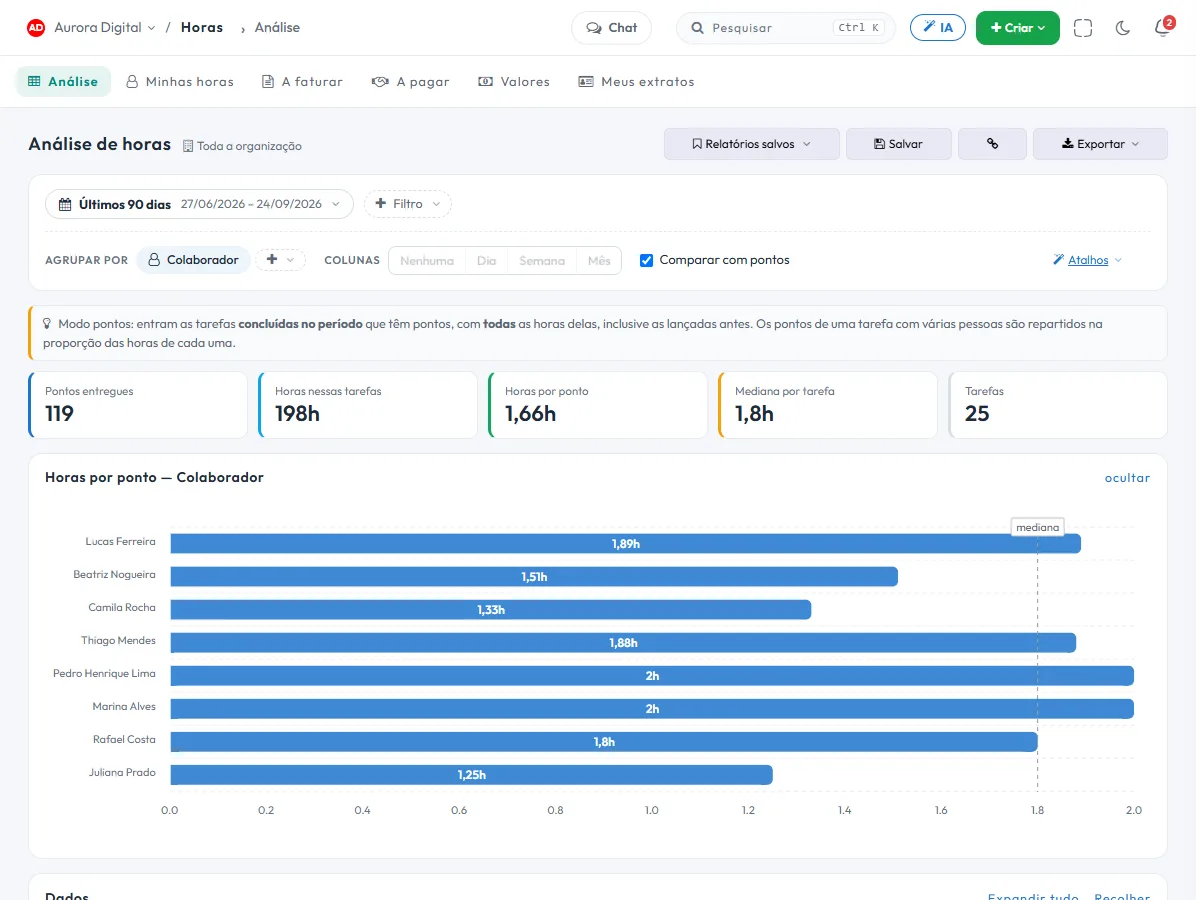
Turn on "Compare with points" and the analysis shows how many hours each point really cost, by person, project or type — compared with the organization median.
- Only what was deliveredTasks completed in the period come in, with all their hours. A half-finished task doesn't distort the calculation.
- Points split fairlyOn a task with several people, points are split in proportion to each person's hours.
- The outlier tasksThe list of what took more than double, or less than half, of the median for the same card. It's the input for the next estimate.
What each hour is worth, on both sides of the counter
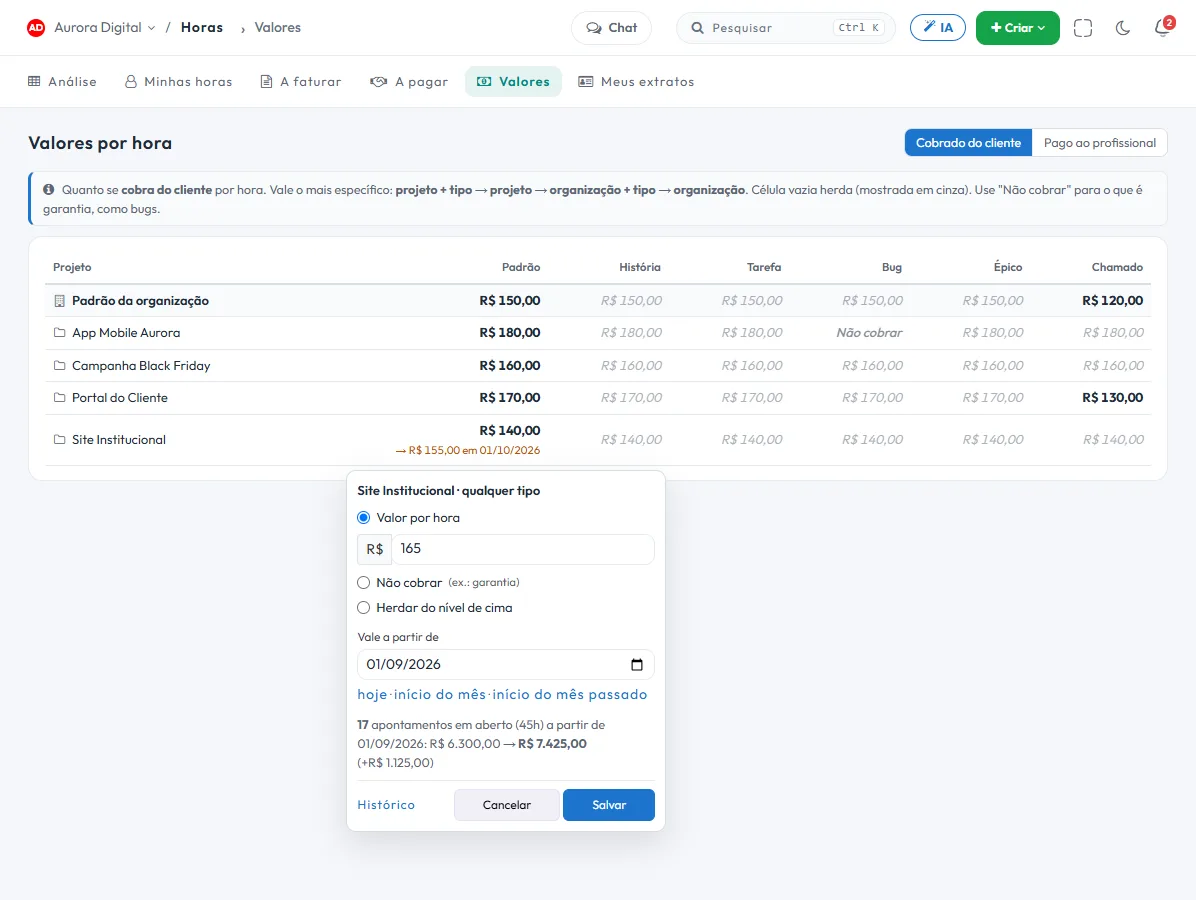
Two tables: what you charge the client and what you pay the people who work. An empty cell inherits from the level above; a filled one wins. Each logged hour takes the rate from the most specific rule.
Billed to the customer
Projects in rows, task types in columns, and the organization default at the top. The most specific rule wins: project + type, project, organization + type, organization. A bug can be "don't bill", for warranty.
Paid to the professional
One rate per person, and per type if you need it. Check "Paid by the hour" for people paid that way: only they go into Payable. Everyone else's rate is an internal cost, used in the margin.

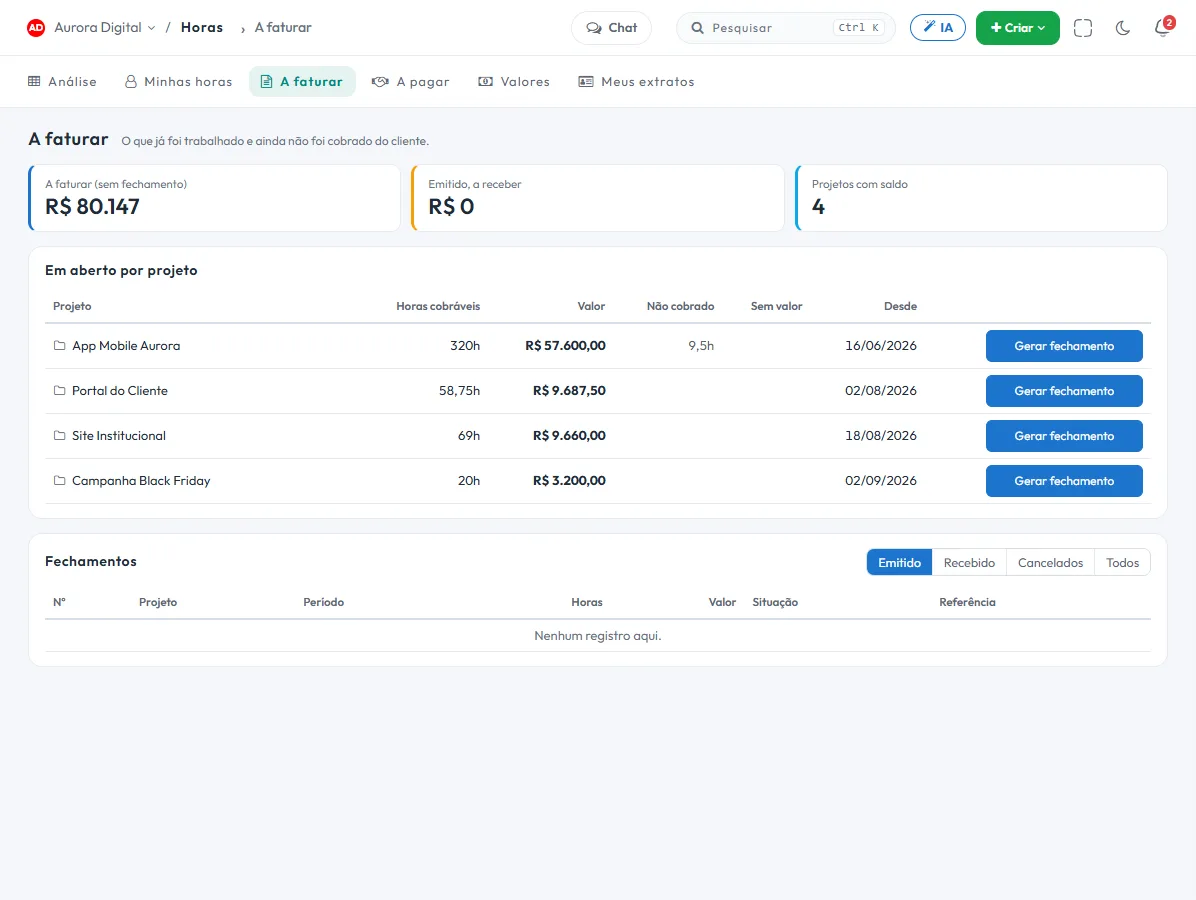
No hour worked forgotten when it's time to bill.
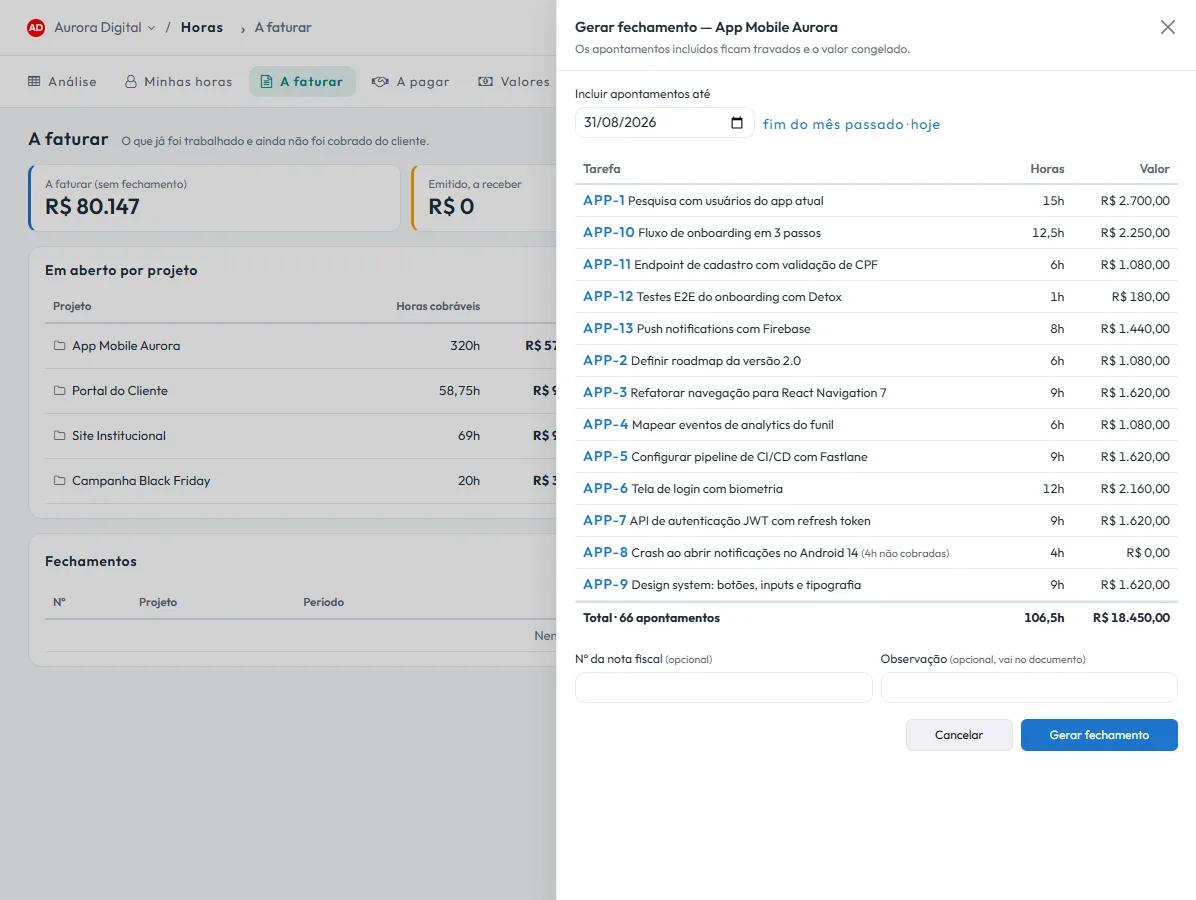
One row per project with what's been done and not yet billed: hours, amount, how long it's been open, and how much has no rate set.
- Generate the closing up to a date"Through 08/31": Tasskee gathers the project's open hours and shows a per-task preview before you confirm.
- Number, frozen rate and lockThe closing gets a sequential number, freezes the rate of each hour and locks the time entries against editing.
- An hour with no rate doesn't slip through silentlyIt stays out, open and flagged, until someone sets the price. Closing it at zero would hide the hole.
The document that goes to the client
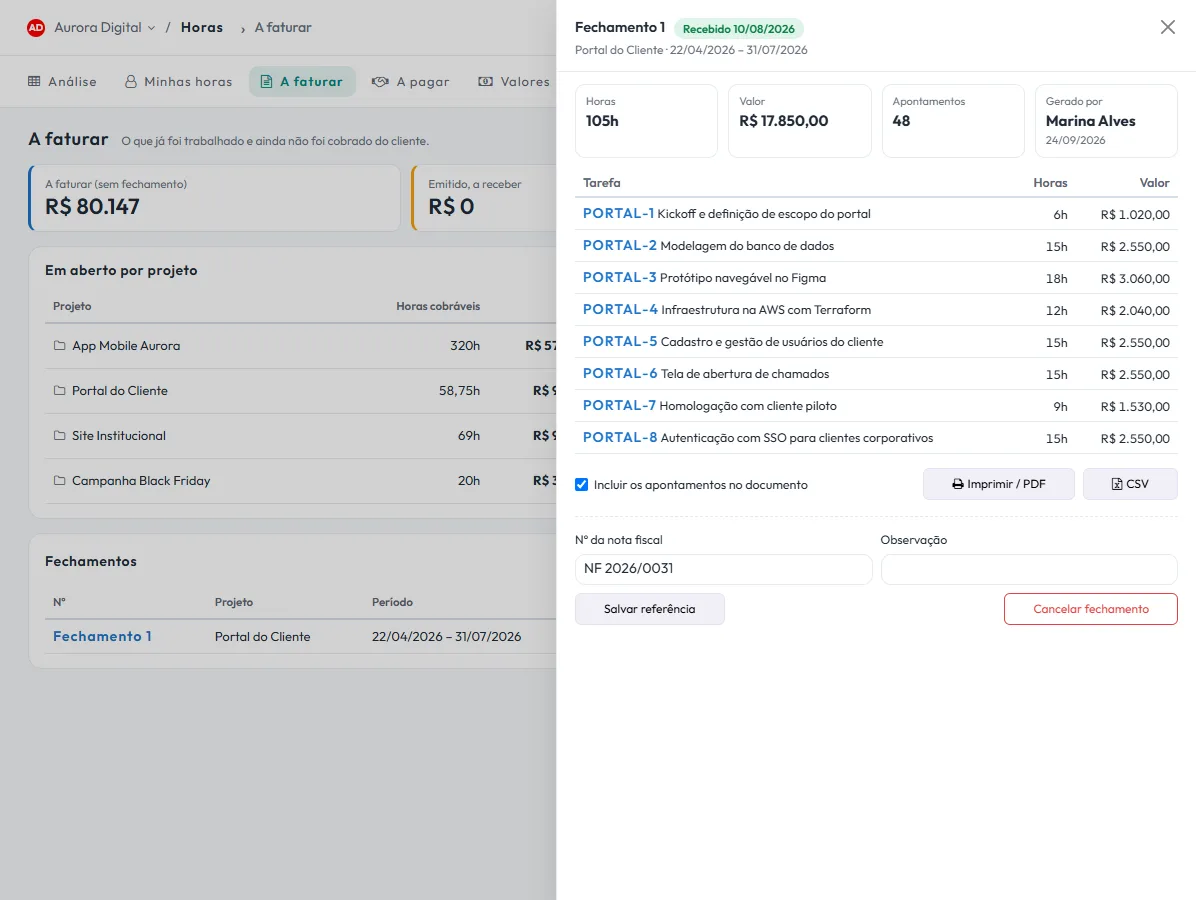
The closing becomes a document with detail per task, ready to print, save as PDF or export as CSV. Cost and internal rate names never appear on it.
- With or without time entriesYou choose whether the client sees only the total per task or each entry with date and notes.
- Invoice and payment receivedSave the invoice number and mark it as received. The "Issued, awaiting payment" queue shows what hasn't come in yet.
- Canceling leaves a trailCanceling requires a reason, releases the hours back to Billable and doesn't reuse the number.
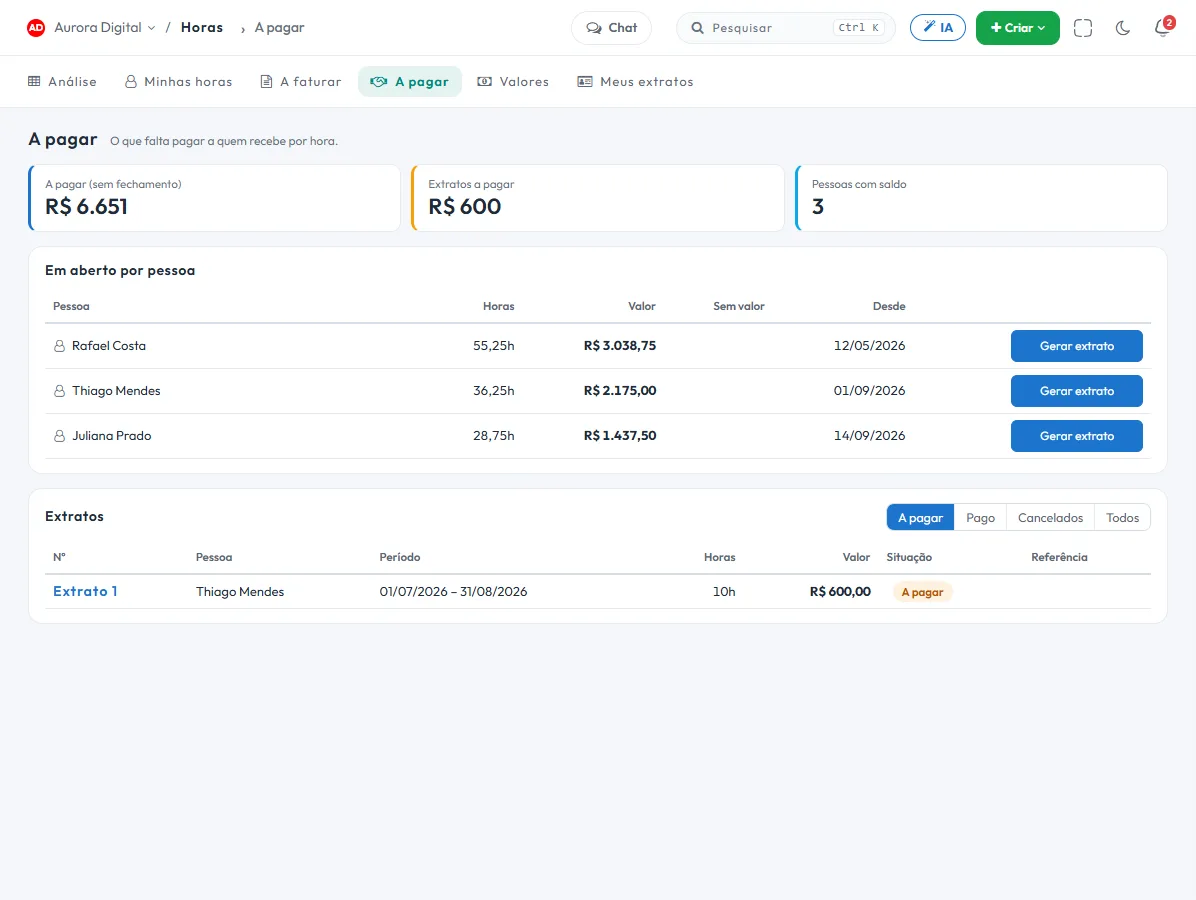
People paid by the hour are paid for what they did. No more, no less.
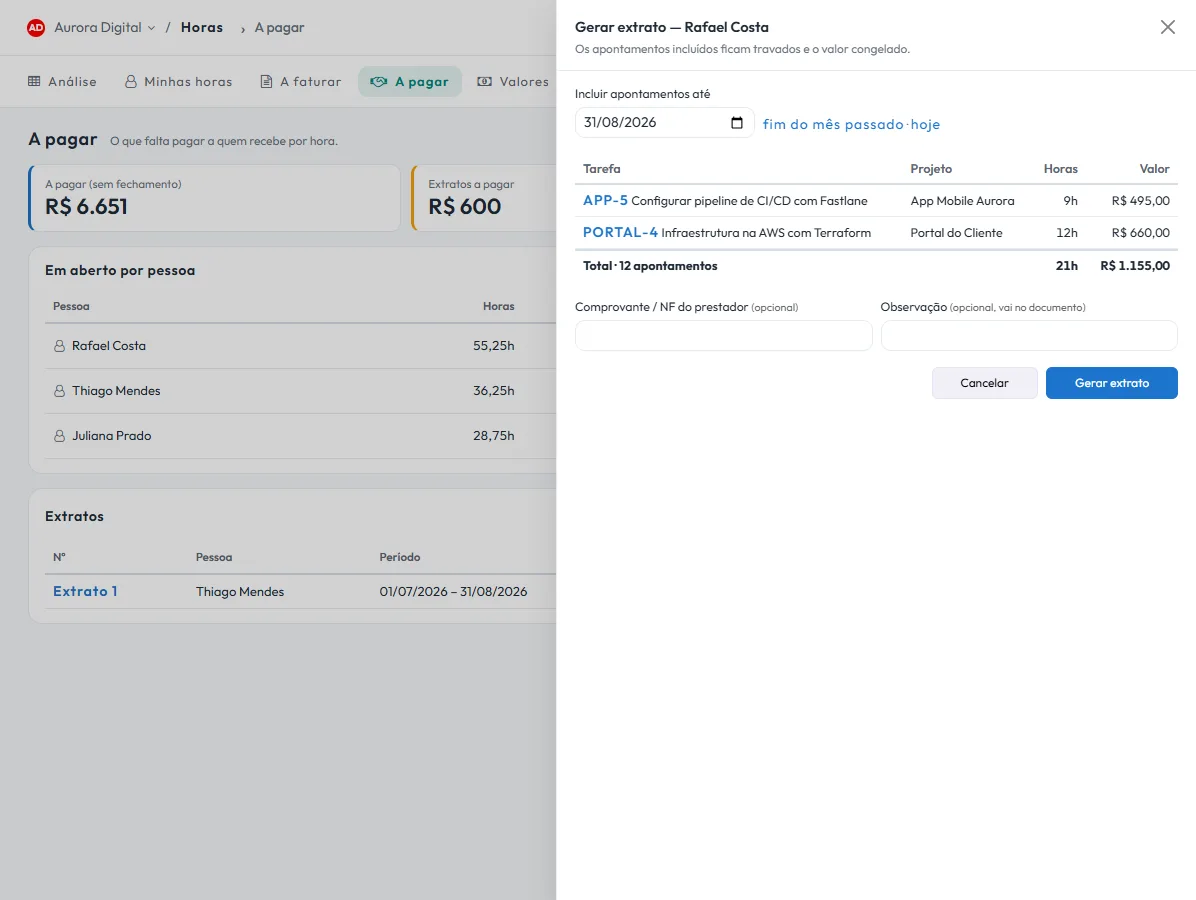
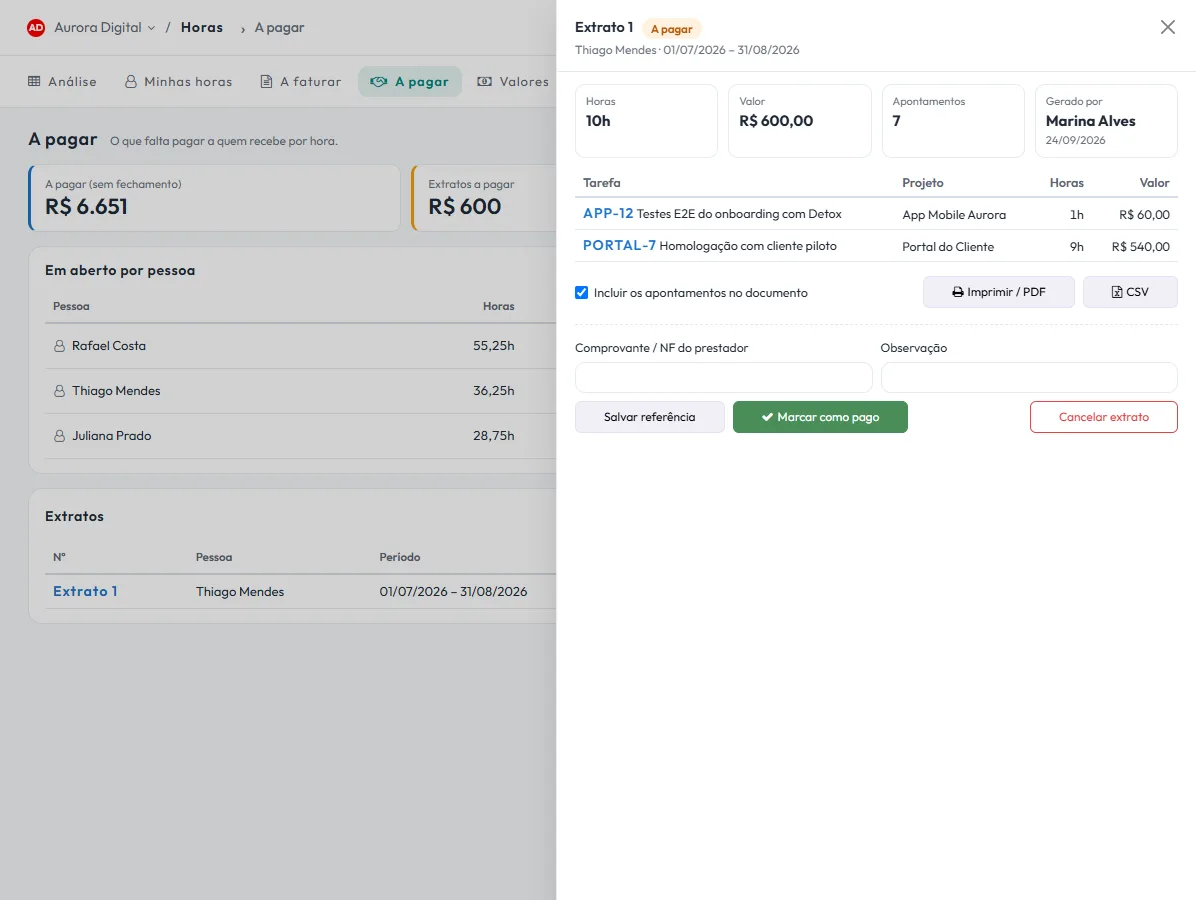
The mirror of Billable, on the side of whoever does the work: one row per person marked "Paid by the hour", the statement up to a date and the payment record with the receipt.
Each person sees their own hours. And only their own.
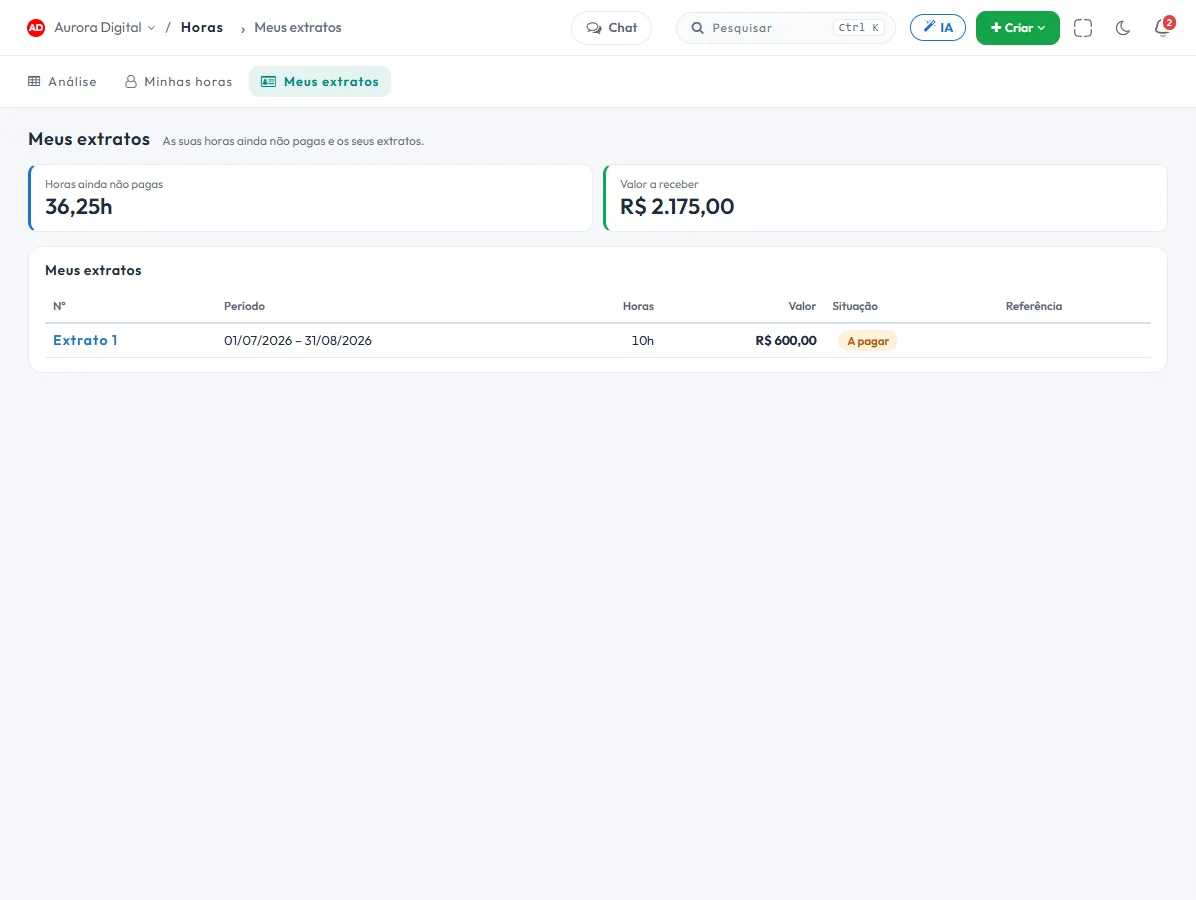
Two screens for the team, which exist for everyone and show nothing that belongs to the company.
My hours
The same analysis, only with what the person logged and no amounts at all: my week, last week by task, the month by project and my points × hours.
My statements
For people paid by the hour: how many hours haven't been paid yet, how much they're owed, and each statement with its status. The rate billed to the client never appears.
Cost is salary. That's why each side has its own key.
Four separate permissions in the profile. Without the permission, the amount never even leaves the server — it's not just a column hidden on screen.
See the billed amount
Billable, margin and the Billable screen.
See the cost
How much to pay each person, and the Payable screen.
Set rates
Edit the hourly rate tables.
Close
Generate and cancel closings and statements, mark as received and paid.
Whoever sees the whole organization is whoever already saw everyone's reports. Everyone else sees only their own hours.
Month-end for people who sell hours
With the spreadsheet
- Export the hours, paste them in and hope they add up
- Looking up each client's rate by hand
- Someone fixes an hour after it was billed
- The contractor asks how much they're owed
- Nobody knows the margin until the quarter closes
- The hours are already totaled, the way you want to see them
- Every hour already has the right rate, by the rule
- What's closed stays locked
- The contractor sees their own statement
- The margin shows up in the month, by project
And the hours stay linked to tasks, sprints and the schedule, in the same Pro plan.
Questions from people who bill and pay by the hour
How does Tasskee know how much to charge for each hour?
If I change the hourly rate, does what was already billed change?
What is the close? Does it issue an invoice?
How does payment work for people paid by the hour?
Can the contributor see how much I charge the client?
Can an hour be billed and not yet paid?
Which plan is it on?
Can I take the numbers to another system?
Close next month without opening the spreadsheet.
Create your account, log time on tasks and set the rates. At month-end, each client's statement and each contractor's statement are one click away.