

The client sees progress without asking for status.
Each project gets a page for the client: whether it is on schedule, how much has been delivered, which stage it is in and what comes next. You decide, section by section, what appears — and what stays with the team.
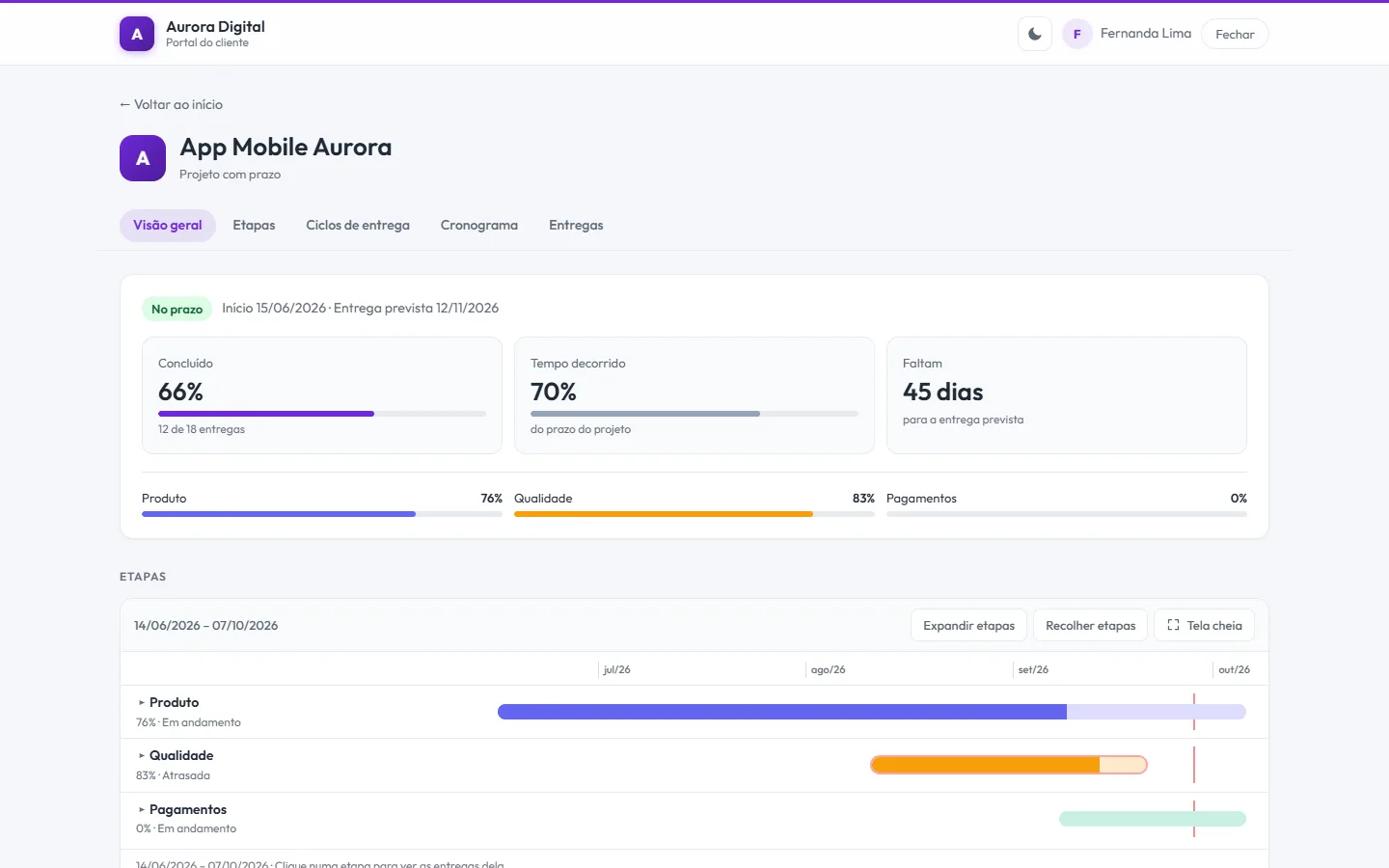
The status report that writes itself
The question "how is the project going?" disappears when the client has somewhere to look. And the number they see is the same as the team's, because it comes from the same tasks.
On track, at risk or late
The portal compares elapsed time with percent complete and warns before the delay. The "at risk" margin is yours to set.
Stages that open and close
The project's workstreams in a read-only Gantt. Collapsed, a stage shows percentage and status; expanded, the deliverables the client can see.
Sprints in client language
"Cycle deliverables: 12 of 15 completed," and the burndown only for the client who likes the chart.
Comment and approve right there
The client replies and approves the delivery through the portal, and everything is logged on the task, with the team notified.
Show? Which ones? How? Section by section
In the project's "Client portal" tab you turn on each section and choose what goes in. Nothing new appears to the client unless someone decides, and the "See as the client sees" button checks the result instantly.
- Overview, tasks, workstreams, sprints and schedules
- "All of them, including new ones" or "only these": the internal workstream created tomorrow doesn't leak
- Project with a deadline or ongoing, with the indicators for each
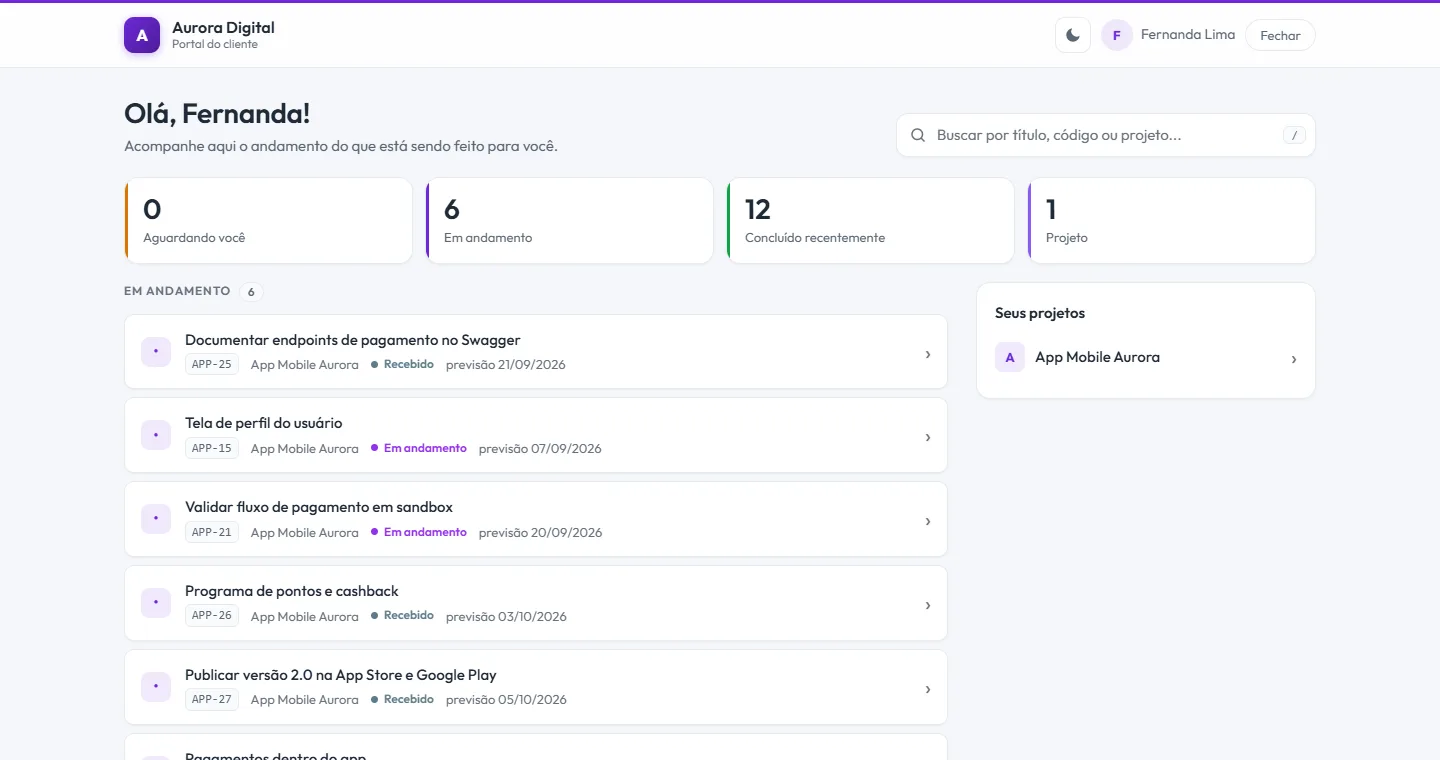
- The home screen gathers what is waiting on the client, what is in progress and what has been delivered
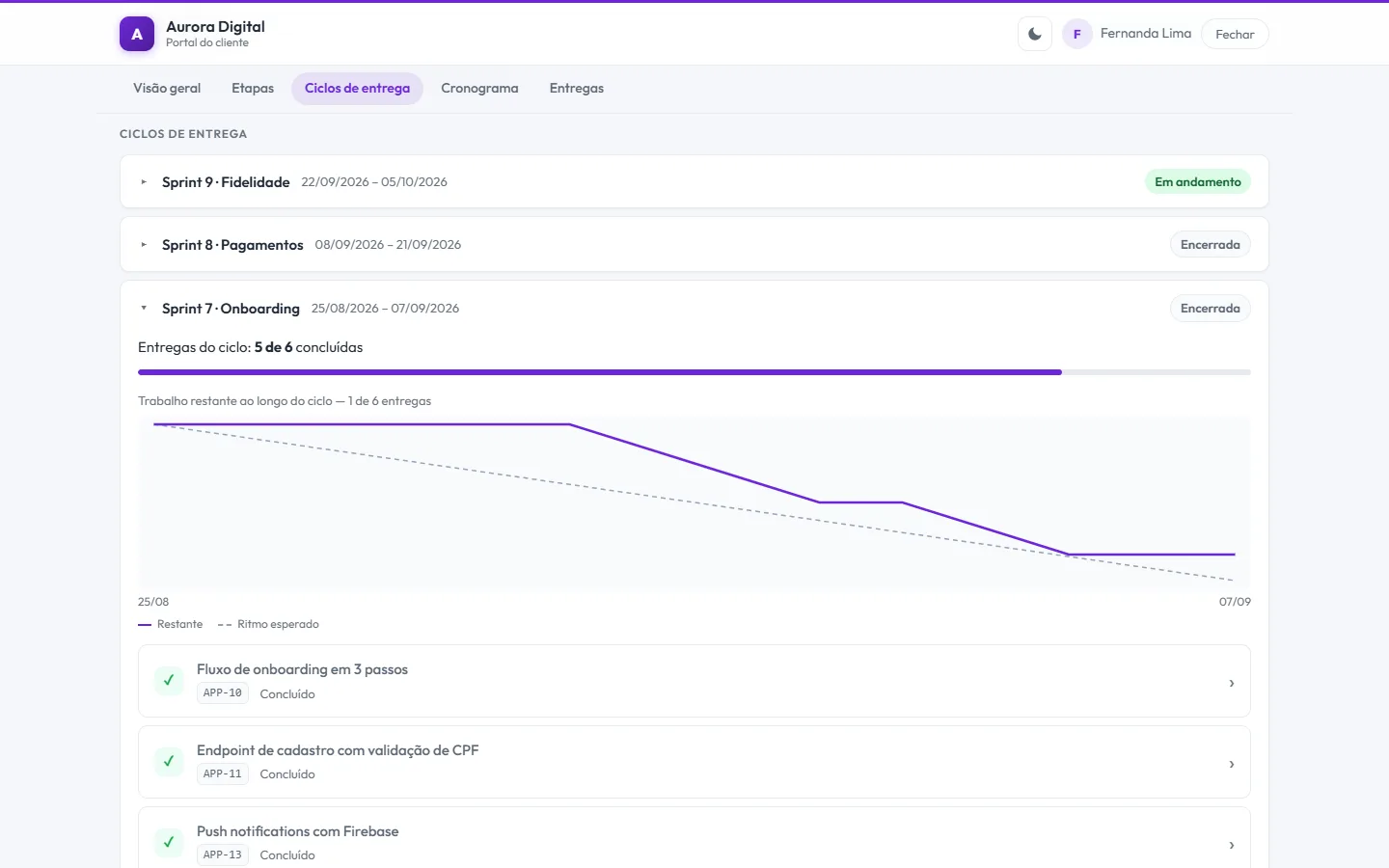
The sprint explained to people outside the team
The client doesn't need to know what a burndown is to understand the cycle: they see how many deliverables closed, what went into each sprint and, if you want, the remaining work throughout the cycle.
- "Cycle deliverables: 5 of 6 completed," with a progress bar
- The current sprint and previous ones, or only the ones you choose
- The chart only appears if you turn it on, with labels in client-friendly language
This lives alongside the rest of the operation
Task, schedule, ticket, goal, and conversation are the same database. What changes in one place shows up in the other, with nothing to export.
How to set up the client portal to put an end to status requests
When clients have nowhere to look, they ask. And every question turns into a message, a meeting or a PDF report put together by hand. The portal swaps that for an always-up-to-date page, in client-friendly language. Here's a playbook for setting up yours.
Step by step
- Open the project's "Client portal" tab. That's where you turn on each section: overview, tasks, workstreams, sprints and schedules.
- Choose what the client sees. For tasks, define whether they're the flagged ones, all of them or only tickets. For workstreams and sprints, choose "all, including new ones" or "only these". That way an internal workstream created tomorrow doesn't leak.
- Define the project type. A project with a deadline shows whether it's on track, at risk or late, with the "at risk" margin set by you. An ongoing project swaps the deadline for this month's numbers against the previous month: deliveries, tickets opened and resolved, and response time.
- Check with "View as the client sees it". The button opens the portal as the guest will see it, without leaving your session and without sending anything to them.
- Invite the client as a guest. They get their own login and don't take up a user seat.
- Agree on how it's used. Let them know that the channel for commenting on and approving deliverables is the portal. Everything is recorded on the task, and the team is notified.
Examples by type of company
Marketing agency
Each client has a project and a portal. The overview shows what's awaiting their approval, what's in progress and what's been delivered. The client approves the piece right there, and the approval is recorded on the task. The monthly meeting becomes about strategy, not about "how's it going?". See the page for marketing agencies.
Technical service provider
A maintenance company with a monthly contract uses the ongoing project: the client sees deliveries and tickets opened and resolved in the month, and the response time. There's no delivery date, so the indicators are monthly. Their requests come in through the help desk, and they follow them in the portal.
Architecture or engineering firm
The client of a renovation follows the stages in a read-only Gantt. A closed stage shows percentage and status; an open stage, the deliverables they can see. When they need to approve a study, they comment in the portal. See the schedule to understand what they see.
What to show and what to hide
| Section | Show when | Watch out for |
|---|---|---|
| Overview | Always; it's the starting point | The numbers count only what they can see |
| Tasks | When the client approves or comments | Choose which are visible; internal ones stay out |
| Workstreams and schedule | Long projects, like construction and deployments | Choose the stages, don't open them all by default |
| Sprints | Clients who follow cycles | The chart only appears if you turn it on |
Best practices and common mistakes
- Start with a few sections and open more as the client uses it. It's easier to release than to take back.
- Take advantage of the client-friendly labels: "Cycle deliverables: 12 of 15 completed" says more than a burndown chart.
- Update tasks as usual. The portal is only reliable because it comes from the same tasks the team uses.
- Avoid releasing everything "for transparency". Drafts and internal discussion confuse the client.
- Check the plan: 5 guests on Start, 50 on Pro and unlimited on Max.
Approval and acceptance form
The portal serves for day-to-day approval. When the delivery calls for formal proof, combine it with a signed acceptance form. The two complement each other: the portal gives the ongoing view; the form, the proof at the end.
What to tell the client on their first visit
Send a short message with the link and three sentences: here you see progress without having to ask; here you comment on and approve deliverables; urgent questions still go through the agreed channel. Schedule a ten-minute conversation to show the screen. Someone who understands where to look stops asking. The portal doesn't replace the relationship with the client; it takes the repetitive work out of it and leaves time for the conversation that matters.
For the argument behind the idea, which is why showing progress reduces noise and builds trust, read the post client portal and transparency. The portal uses guests from the Start plan, and the 15-day trial unlocks everything, no card required.
Questions about the client portal
Does the client pay or take up a license?
Does the client see internal tasks?
Can I check before sending access?
Does it work for a monthly contract with no delivery date?
Send the portal link instead of the next report
Create a free account, invite the client to a project and see the portal as they will see it.